
Tuya Smart App Free Download for PC, Windows, Android & iPhone
Download the official Tuya Smart app to control and monitor your cameras anytime, anywhere. Works seamlessly on Windows, Android, and iOS devices.
Note: We are a professional OEM CCTV manufacturer of Tuya smart cameras. This page provides secure download links, but we are not the official developer of the Tuya Smart app.
Download Tuya Smart App Safely
Get the Tuya Smart app safely from trusted sources. Avoid malware and ensure your device stays secure by downloading only from verified platforms.
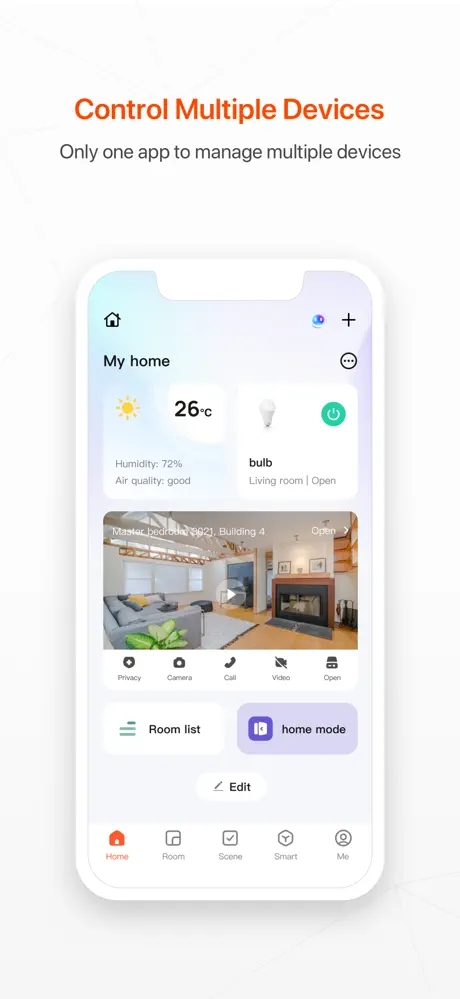
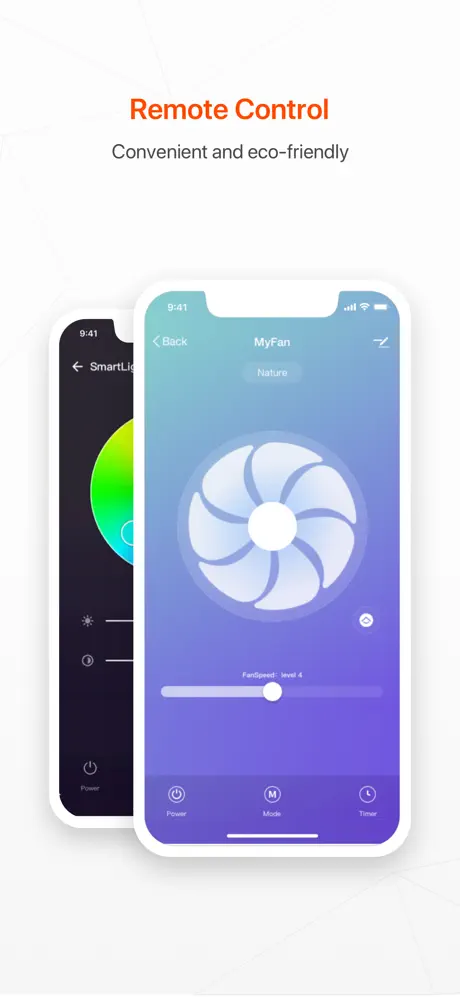
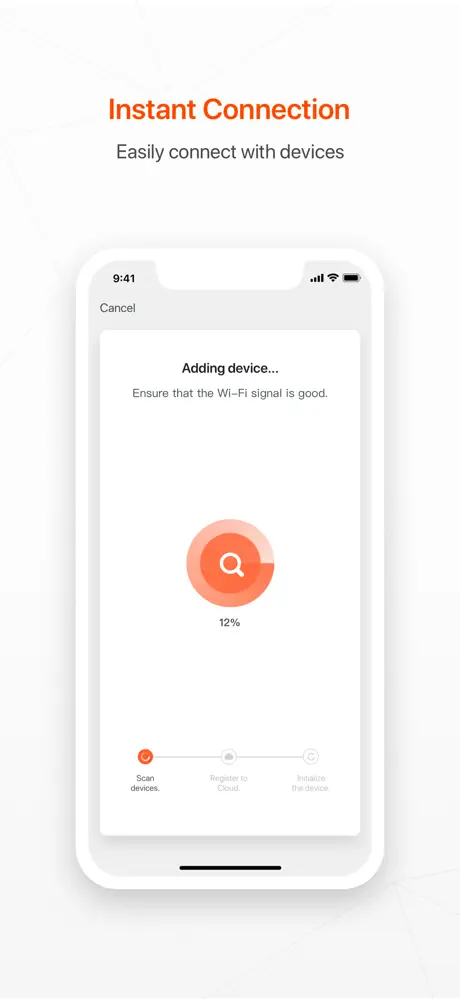
OEM Tuya Smart Cameras for Global Brands
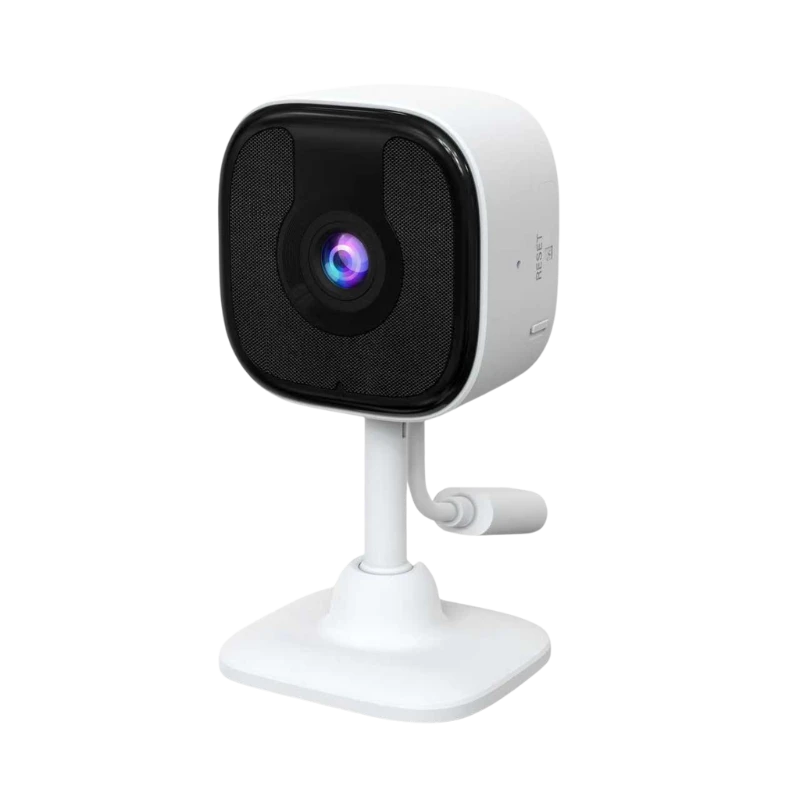
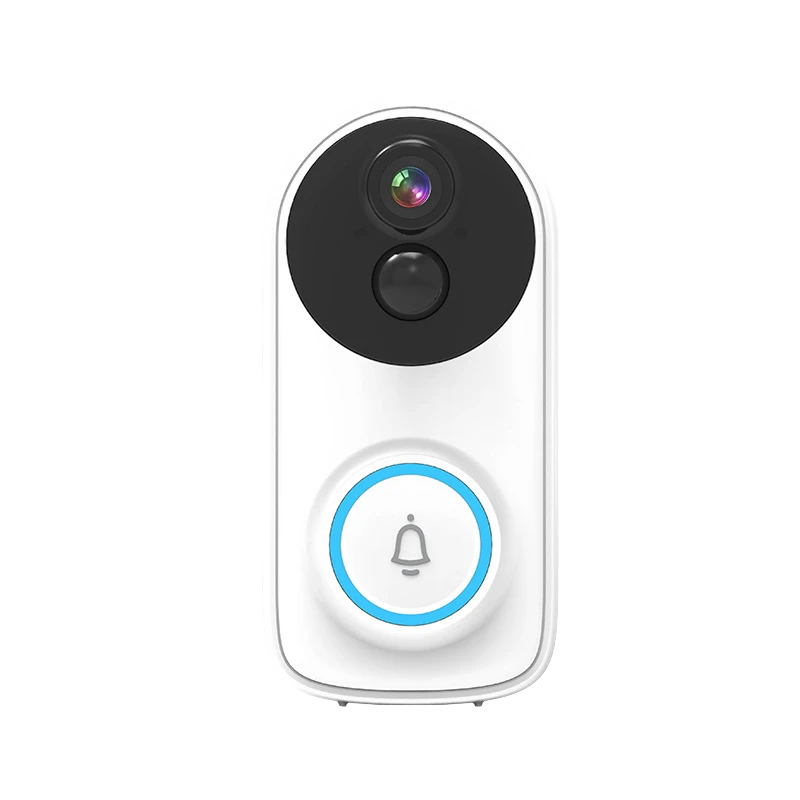
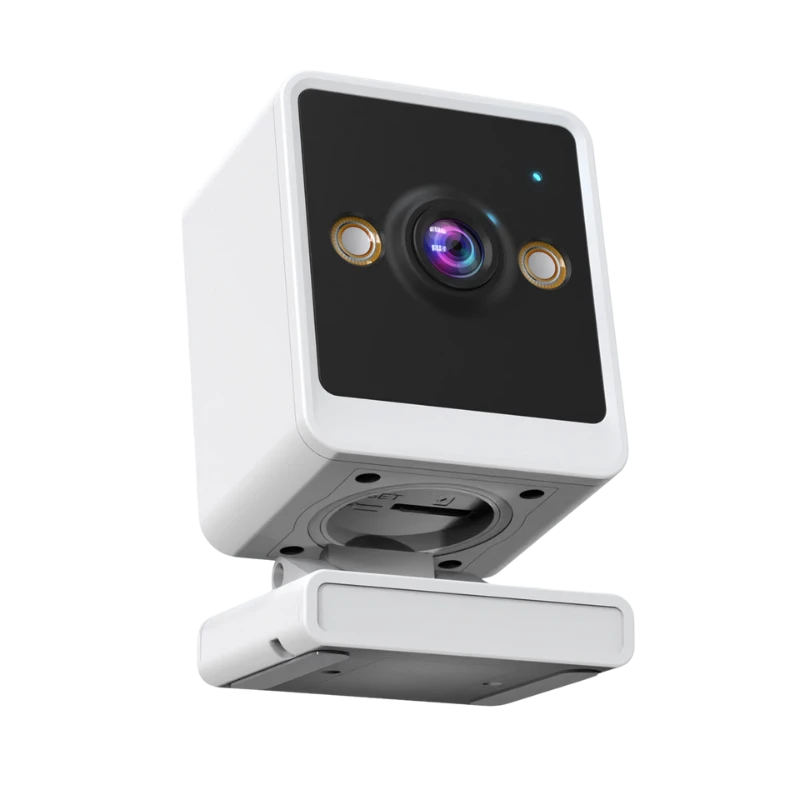
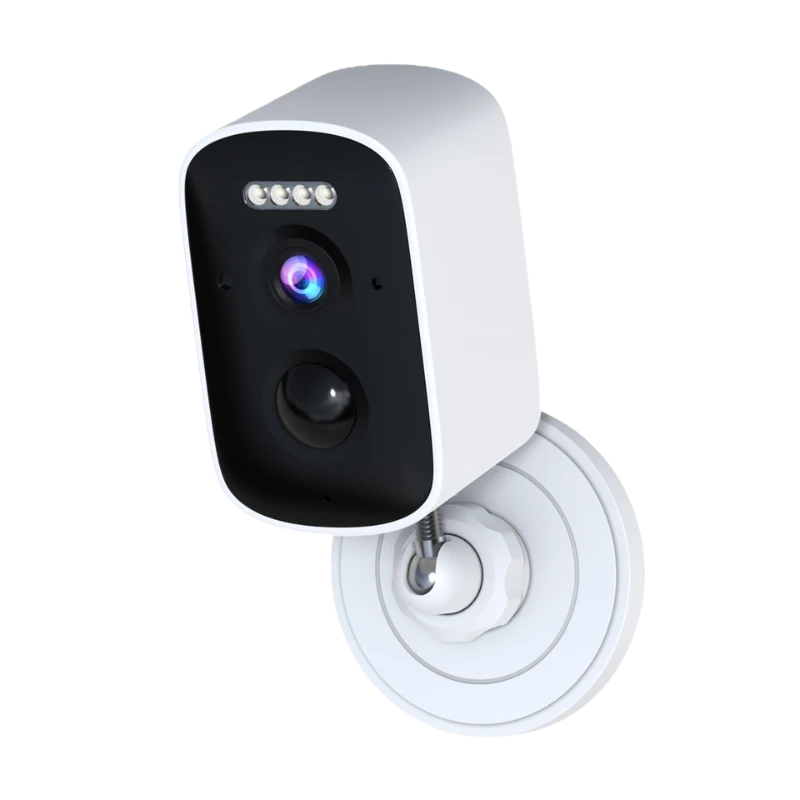
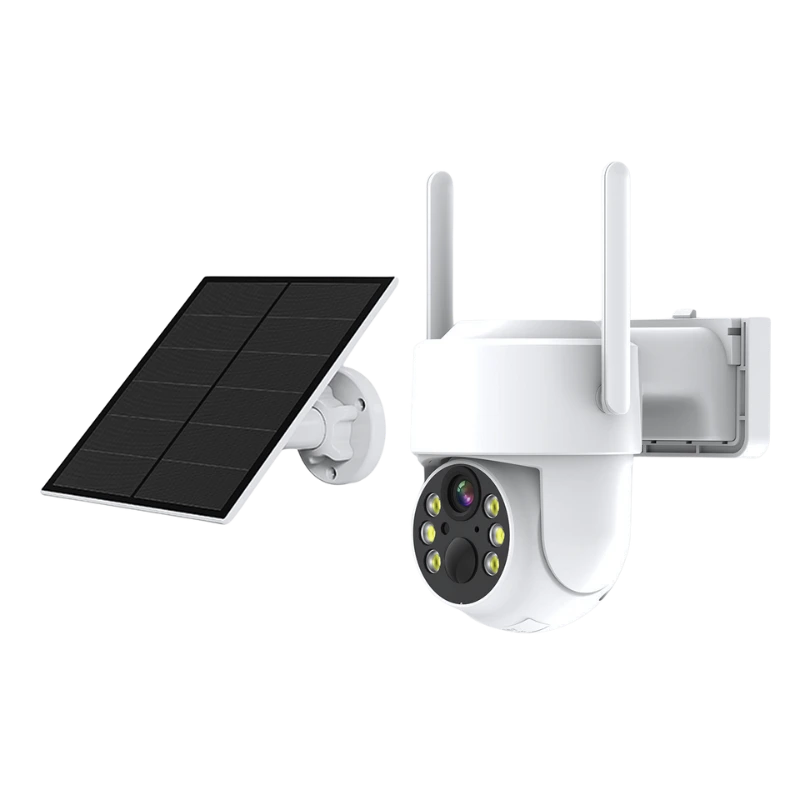
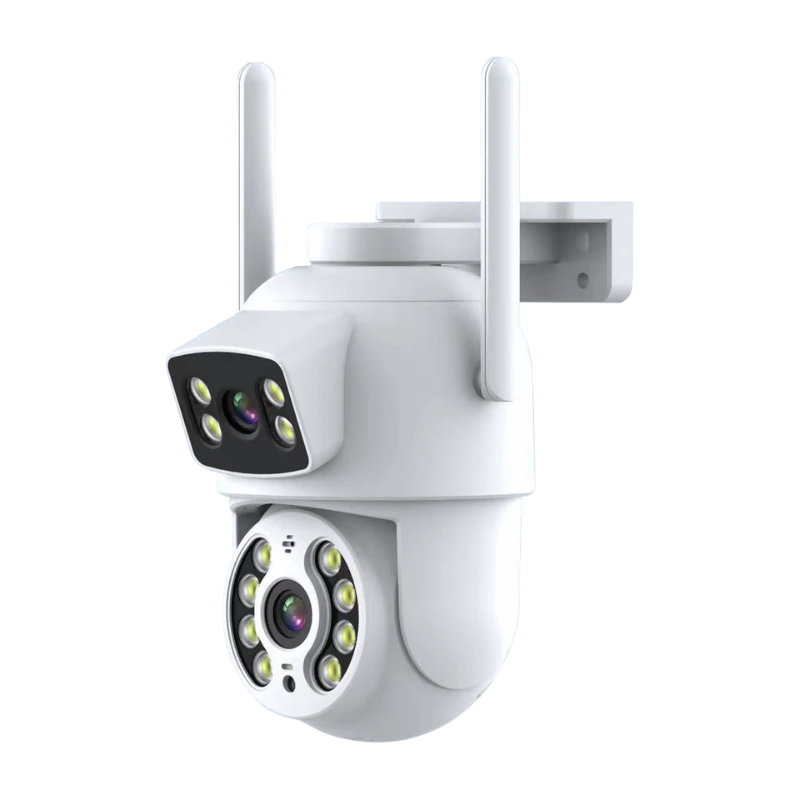
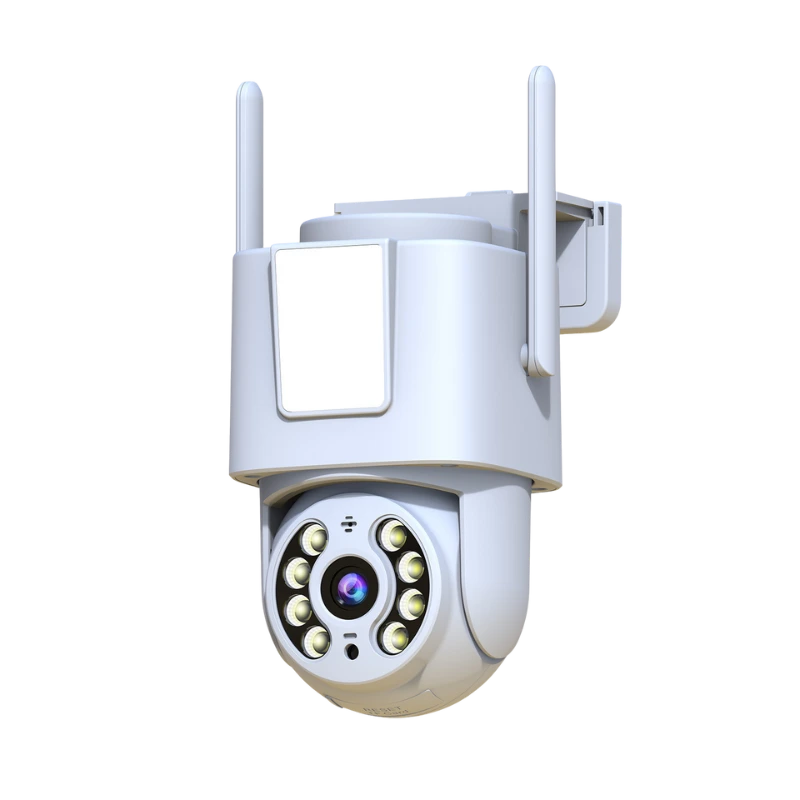
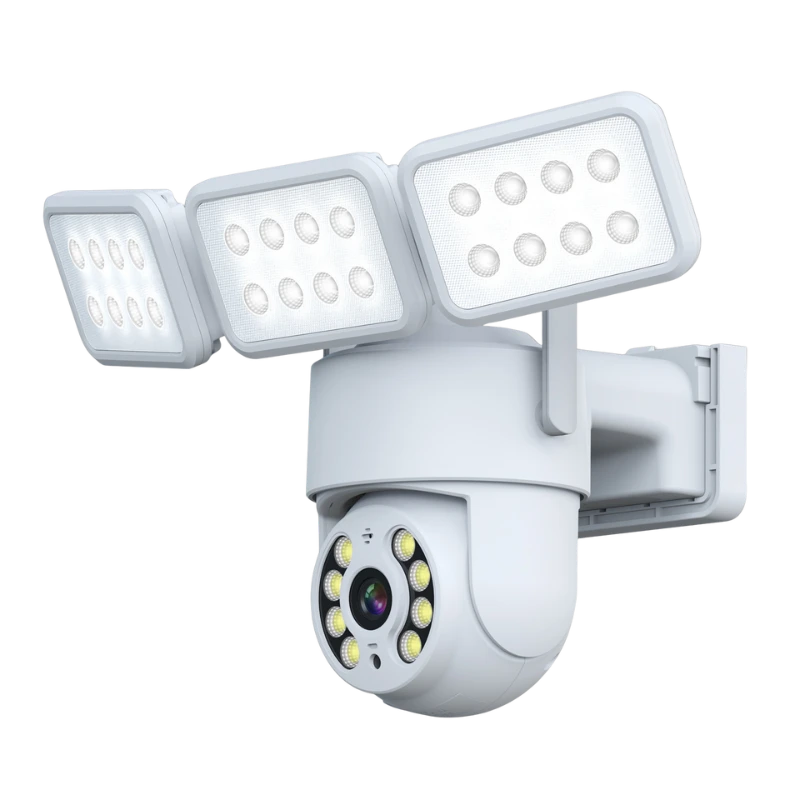
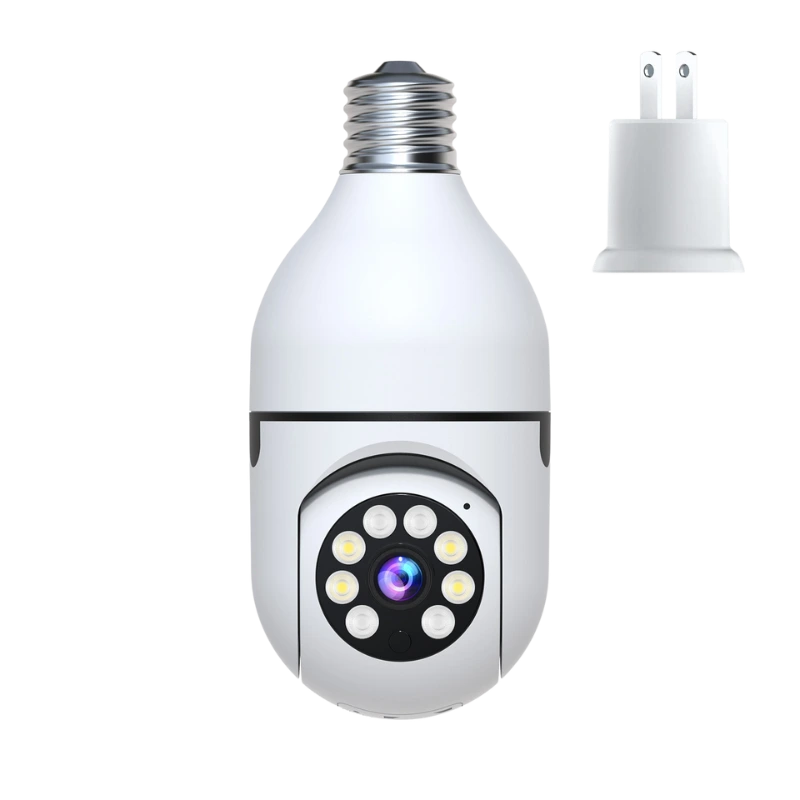
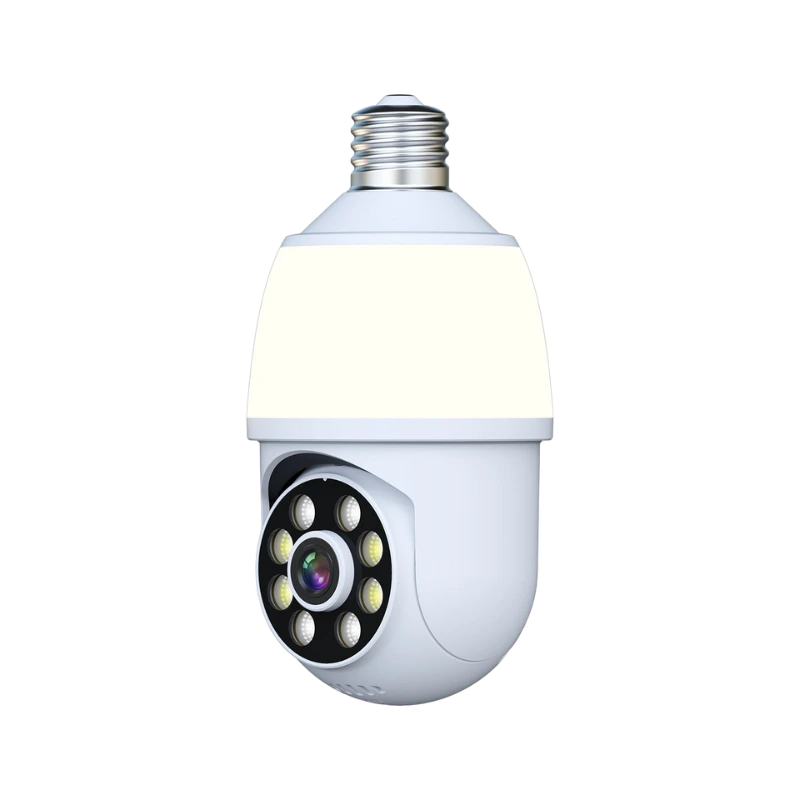
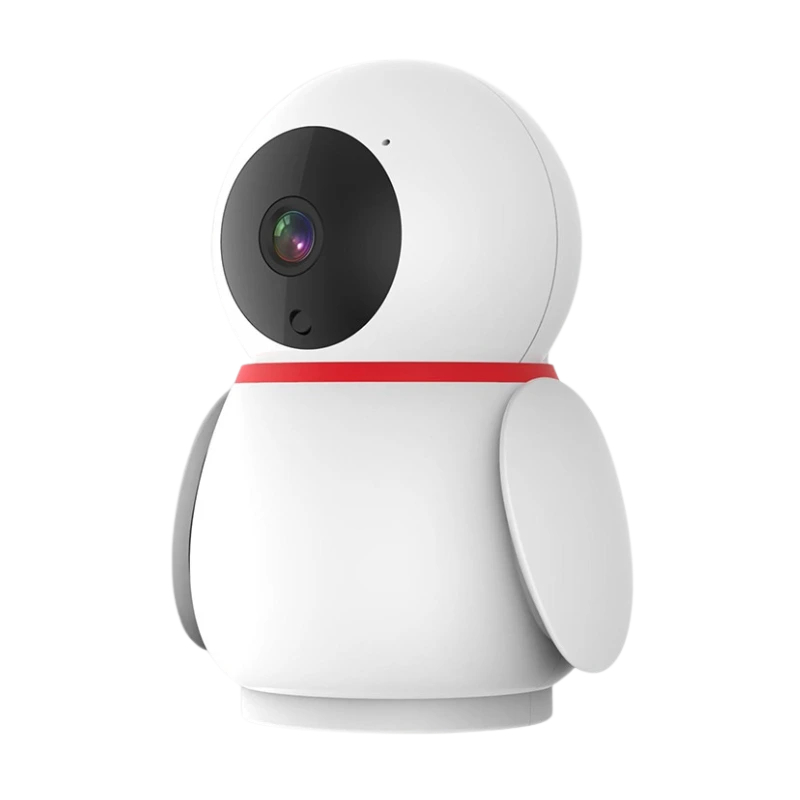
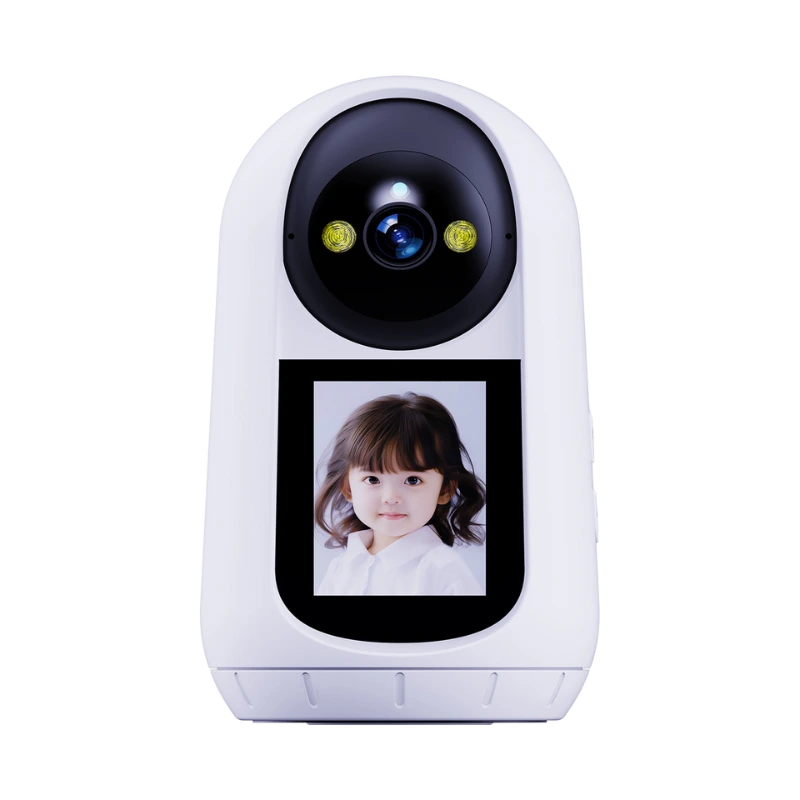
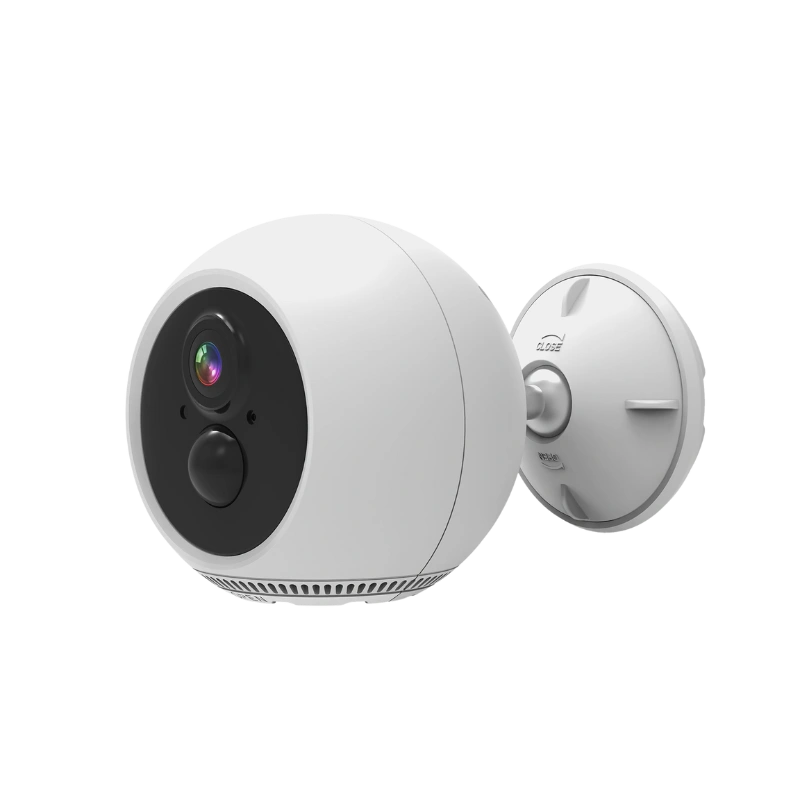
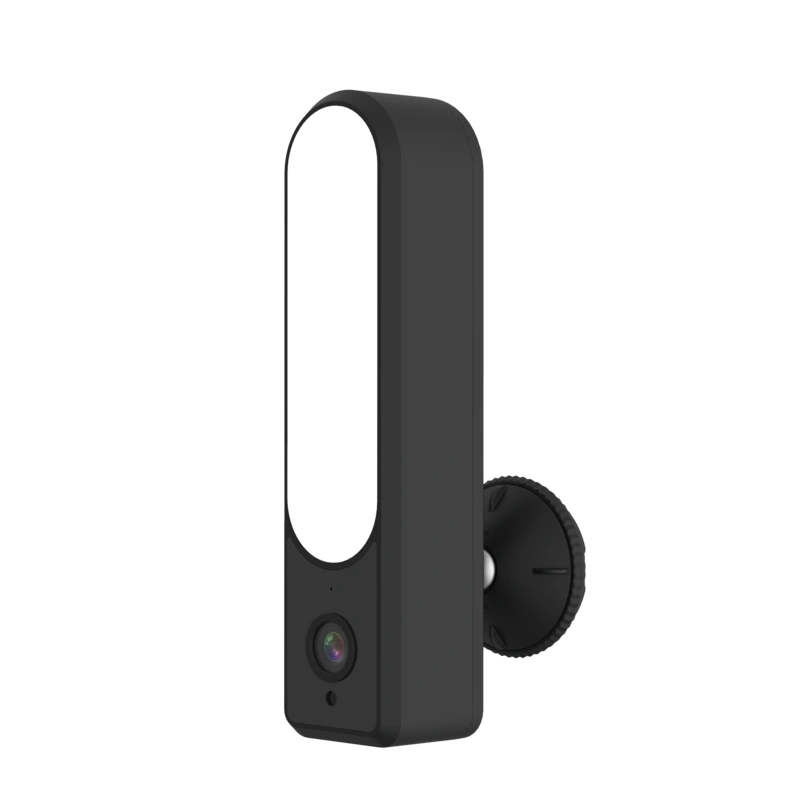
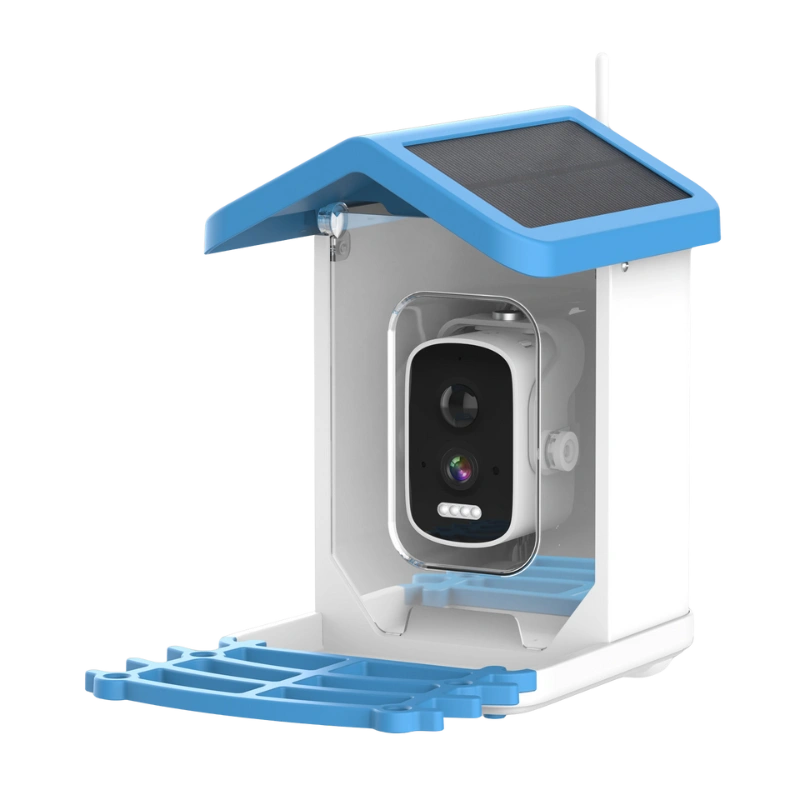
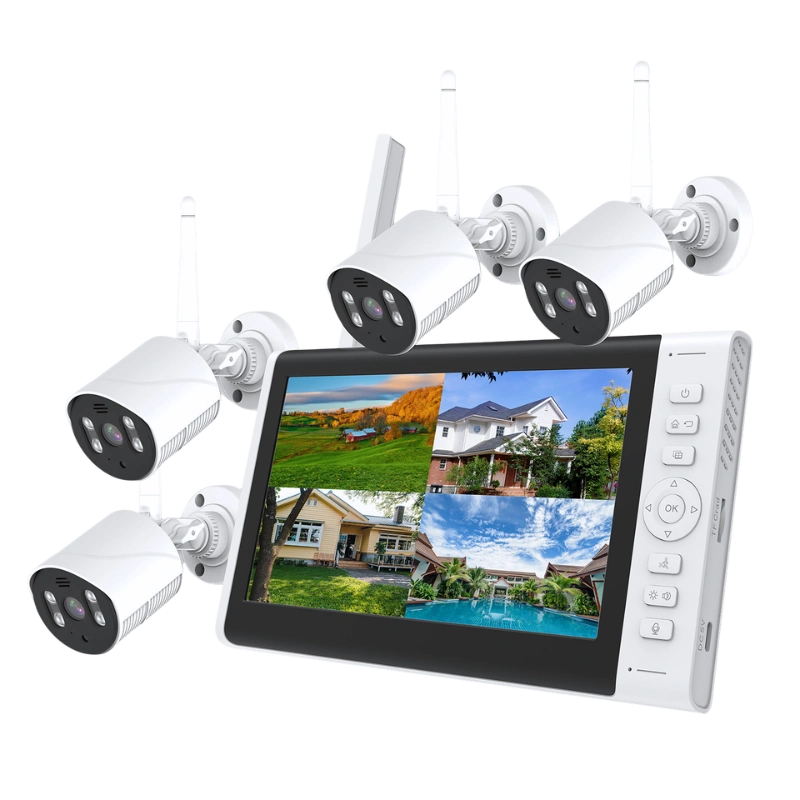
As a leading security camera manufacturer in China, we customize high-quality Tuya smart cameras (indoor/outdoor, WiFi/4G, 2MP-4K) for home, business, or urban use, with private label options and factory-direct pricing.
Tuya Smart App & Camera FAQs: Setup, Troubleshooting, and Features
Get fast answers for Tuya smart cameras and the app. Learn about setup, Wi-Fi connections, cloud storage, fixing problems, resets, and more. Solve issues quickly and get the most from your security setup.
Tuya is a global Internet of Things (IoT) platform provider that enables brands, manufacturers, and developers to easily create, manage, and connect a wide variety of smart devices through the cloud. Its ecosystem powers smart lighting, plugs, cameras, sensors, and more, making them compatible with popular smart home systems.
A Tuya smart device is any home appliance or gadget (such as lights, cameras, plugs, or sensors) that integrates Tuya’s IoT platform, allowing Wi-Fi connectivity, remote control via the Tuya Smart or Smart Life app. These devices are often produced by third-party manufacturers using Tuya’s hardware modules and software.
Tuya claims to use advanced security, including SSL/TLS encryption, and states compliance with global privacy and data protection standards like GDPR. Some independent security researchers have raised concerns over device vulnerabilities and data sent to overseas servers. But in my opinion, Tuya Smart is safe enough for home security use. Users seeking additional privacy may consider segregating smart devices on a separate network (VLAN) for added safety.
- Ensure your Tuya devices are set up and connected to your Tuya account.
- Open the Alexa app, go to “Skills & Games,” search for “Tuya Smart,” and enable the skill.
- Log in with your Tuya credentials to link accounts.
- Ask Alexa to “discover devices,” or let it do so automatically. You can now control compatible Tuya devices by voice.
To connect a Tuya smart camera to WiFi:
- Power on the camera and put it into pairing mode (e.g., long press reset until the light flashes).
- Open the Tuya Smart app, tap “+” to add device, select “Camera & Lock” > “Smart Camera (WiFi)”.
- Enter your 2.4GHz WiFi credentials (not 5GHz).
- Scan the QR code generated in the app with the camera or use AP mode if needed.
Note: Ensure the phone is on the same network and the signal is strong.
- Remove the camera from the Tuya Smart app.
- Reset the device to factory settings (hold the reset button until you hear a beep or see a flashing light).
- Re-add the camera using the new WiFi network (it must be 2.4GHz).
- Follow the in-app prompts to complete the setup. All previous settings will be lost and must be reconfigured.
- Locate the reset button (often on the camera body or cable).
- Long press it for 5-8 seconds until the indicator light flashes or you hear a prompt (e.g., “reset successful”).
- Alternatively, remove it from the app and power cycle repeatedly (on/off 3 times). This restores factory settings for reconfiguration.
Tuya cameras mainly work with phone apps (iOS and Android). There isn’t an official Tuya app for PCs. While some models might work with a web browser or other camera software, Tuya doesn’t officially support this. We don’t recommend using third-party software to view the camera on a PC because it’s not safe.
The reset button on a Tuya smart camera is typically located on the camera body, often near the SD card slot, on the cable, or under a cover (e.g., next to the power port). It may be a small pinhole requiring a pin to press. Check the user manual for your specific model, as placement varies.
Common reasons for a Tuya smart camera going offline include poor WiFi signal, network changes (e.g., new password or router reboot), power interruptions, firmware issues, or router overload.
Troubleshooting:
- Check power and WiFi stability (ensure 2.4GHz).
- Restart the camera and router.
- Move closer to the router.
- Update firmware in the app.
- Re-add the device if needed.
If persistent, it could be server-side or hardware faults.
To view a Tuya camera in the Google Home app:
- Ensure the camera is added to the Tuya Smart app.
- In Google Home, tap “+” > “Set up device” > “Works with Google” > Search for “Tuya Smart” and link your Tuya account.
- Discover devices; the camera should appear for live streaming (note: full features like two-way audio may require Nest Hub displays). If not visible, revoke and re-link access.
This could be due to no SD card inserted, insufficient storage, poor upload speed (needs at least 2Mbps), or the recording switch being off in the app.
Format the SD card to FAT32 in the app, ensure a stable network, and check cloud storage subscriptions if using that feature.
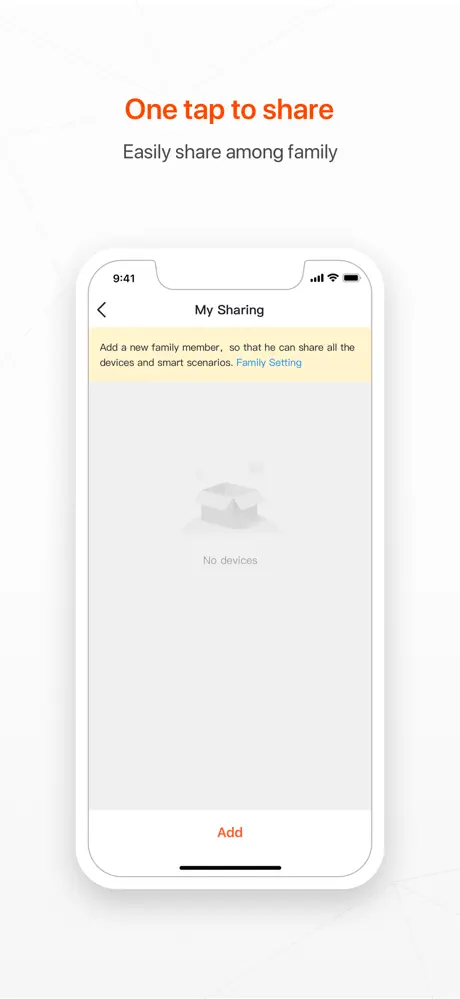
In the Tuya Smart app, go to the camera’s settings > “Share Device” > Enter the family member’s Tuya account email or phone. They must accept the invitation in their app. Permissions can be set for viewing only or full control.
Clear the app cache, force close and reopen it, or uninstall/reinstall. Ensure your phone’s OS is updated and the app is the latest version. If issues persist, check for device compatibility or network problems.
Motion detection may not work if the sensitivity is too low (adjust in app settings), the area is excluded in detection zones, or there’s poor lighting/network. Ensure the feature is enabled and test with firmware updates.
Insert the SD card into the camera. In the Tuya Smart app, go to camera settings > “Storage” or “SD Card” > Select “Format” (it must be FAT32 format). Back up data first, as formatting erases everything.
No, Tuya cameras require internet for remote viewing, app control, and cloud features. Local SD card recording may work offline, but live streaming and notifications need WiFi connectivity.
Ensure the camera lens is clean and focused (hold 15-20cm away), the phone screen brightness is high, and no special characters in WiFi name/password. Use a 2.4GHz WiFi network and try AP mode if EZ mode fails.
Get OEM Tuya Camera Solutions From A Leading CCTV Manufacturer
If you’re a CCTV wholesaler, importer, or security brand, work with us for custom Tuya camera production: Factory-direct pricing for global distribution; Private label/OEM services to boost your brand; Scalable supply chain for consistent delivery.