By delving into “Icsee Camera Troubleshooting,” readers will find effective solutions to address common issues they may face with their security cameras. This article aims to equip you with the knowledge to maintain the functionality and reliability of your Icsee camera setup.
Having worked extensively with Icsee cameras, I understand the frustrations that accompany technical difficulties. In this straightforward guide, I’ve compiled practical, step-by-step instructions to troubleshoot your camera effectively.
After reading this guide, you’ll be empowered to handle most camera issues independently, ensuring continuous surveillance and peace of mind.
We’ll cover common problems such as connectivity issues, camera offline errors, and video stream problems, offering simple solutions for each. Let’s dive in and get your Icsee camera running smoothly again.
ICSee Camera Troubleshooting: Not Connecting to WiFi
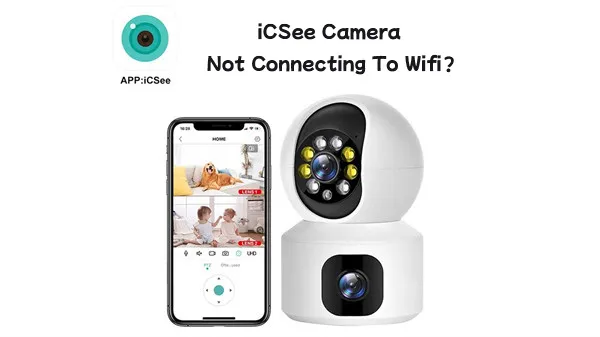
Nothing stings more than seeing the “Camera not appearing in the app” message on your ICSee Camera setup. You’re pumped to get everything rolling, but the Wi-Fi gremlins won’t let you. ICSee camera troubleshooting can be challenging, but don’t lose hope just yet.
1. Check Wi-Fi Signal Strength and Router Position
Start by eyeballing the Wi-Fi signal strength. Did you know that a signal drop-off can happen with just a few walls or floors in between your router and camera? According to a 2021 study by the Wireless Broadband Alliance, even a small decrease in signal strength can lead to connection issues.
Tips to Boost Wi-Fi Signal:
- Reposition the router: Place it as close to the camera as possible. Height can matter. Routers generally send signals downward, so higher placement often works best.
- Invest in a Wi-Fi extender: These gadgets can improve coverage substantially.
2. Ensure Correct Wi-Fi Network and Password
Double-check you’ve entered the correct Wi-Fi network and password. It’s astonishing how often this simple step gets overlooked. If you’re not already aware, 24% of Wi-Fi network failures are due to incorrect passwords.
Steps to verify: 1. SSID: Ensure you are selecting the right network. 2. Password: Re-enter it carefully. A single mistyped character can throw off the entire connection.
Sometimes, your ICSee camera might have trouble connecting to a 5 GHz network. Switch it over to a 2.4 GHz network, as these frequencies are more stable for longer distances and obstacles.
3. Reduce Interference from Other Devices
Believe it or not, other tech in your home can mess with your ICSee camera’s connection. It’s not just a case of bad luck that other devices can create interference. Microwaves, baby monitors, and even cordless phones can wreak havoc on your Wi-Fi signals.
How to Minimize Interference:
- Move interfering devices away: Keep these electronics away from your router and camera.
- Changing your Wi-Fi channel: Use apps like Wi-Fi Analyzer to find less crowded channels, making your connection smoother.
In this ICSee camera troubleshooting guide, we’ve laid out how to check Wi-Fi signal strength, ensure correct network settings, and reduce potential interference. Now, take a deep breath and tackle each step methodically. Your camera connection woes will be history in no time!
ICSee Camera Troubleshooting: ICSee Camera Keeps Going Offline

1. Verify Power Supply and Cables
Alright, let’s dive right into ICSee camera troubleshooting. If your ICSee camera is going offline randomly or not showing a live feed, the first step is to check the power supply and cables. It’s super simple but often overlooked. Start by checking if the power adapter is properly plugged in.
Is it securely connected? Sometimes a loose connection can cause your camera to go offline. Next, inspect the cable for any visible damage or wear and tear. Even a tiny cut can disrupt the power supply. Trust me, you don’t want to miss this step.
2. Restart the Camera and Router
Still, having issues? Let’s move on. A quick restart can often be a magic fix. Unplug your camera and router, wait for about 30 seconds, then plug them back in. Why does this work? Well, sometimes routers can get overwhelmed with network traffic, leading to connectivity issues with your ICSee camera. Restarting both devices can clear any temporary glitches.
One of my readers, Sarah, tried this, and voila—her camera was back online!
3. Update Camera Firmware via the ICSee App
Now, if the camera continues to act up, it might be a firmware issue. Outdated firmware can lead to bugs or security vulnerabilities. Open the ICSee app, navigate to the settings menu, and look for a firmware update option. Make sure you’re running the latest version. Firmware updates can sometimes include handy bug fixes that could solve your connectivity problems for good.
ICSee Camera Troubleshooting: ICSee SD Card Not Detected
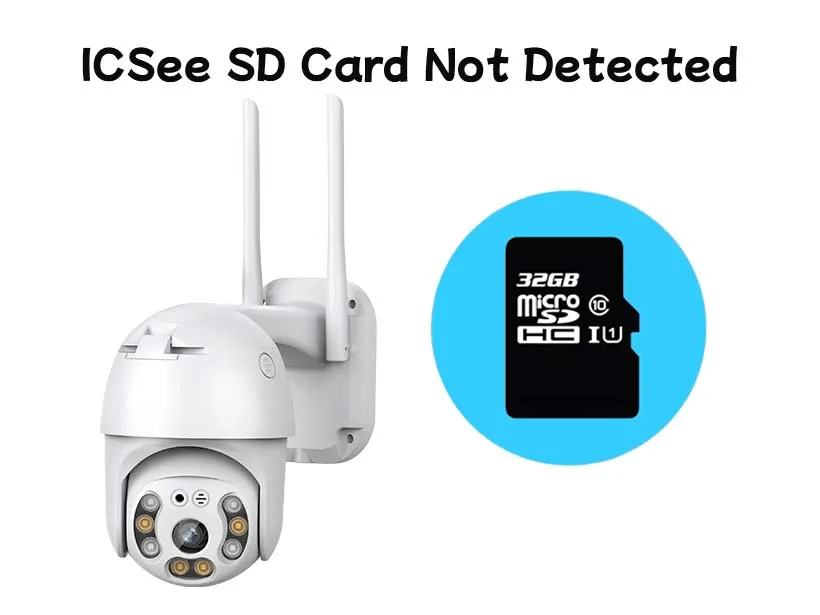
It’s frustrating when your footage isn’t being saved because your ICSee camera isn’t recognizing your SD card. Don’t worry; let’s dive into some straightforward ICSee camera troubleshooting steps to get you back on track.
1. Ensure Compatibility with the ICSee Camera
First things first: check if the SD card is compatible with your ICSee camera. This step is crucial. Many users overlook this and end up with an unsupported card. To avoid these pitfalls, refer to your camera’s manual or product page to confirm the supported types and capacities, typically up to 128GB Class 10 or higher. If you’re still unsure, ICSee’s support page is a fantastic resource.
2. Properly Insert the SD Card
Proper insertion of your SD card can sometimes be all it takes. Inspect the SD card slot and carefully insert the card until it clicks into place. Sounds simple, right? But you’d be surprised how many issues stem from just not inserting the card correctly! Make sure the metal contacts are facing the right way as specified in your user manual.
3. Format the SD Card
Formatting can resolve various issues. Try formatting your SD card in the ICSee app or directly on your computer. To do this:
- Using the ICSee App: Navigate to Settings > SD card settings > Format SD card.
- On a Computer: Insert the SD card into your computer, go to “This PC” (or “My Computer”), right-click on the SD card drive, and select “Format.”
Formatting will erase all data, so back up anything important first! A fresh format often clears up corruption or incompatibility issues.
4. Try a Different SD Card
Still having trouble? Test with another SD card. Borrow one from a friend if you don’t have a spare. If the new card works, it’s safe to point the finger at your original card being faulty. If not, your camera might have a hardware issue. At that point, reaching out to ICSee support would be your best bet.
Wrapping Up
By following these ICSee camera troubleshooting steps, you can solve most SD card related problems quickly and efficiently. Remember, the right SD card and proper formatting can make all the difference in seamless footage recording. Good luck!
ICSee Camera Troubleshooting: Motion Detection Not Working
1. Adjust Motion Sensitivity in the Settings
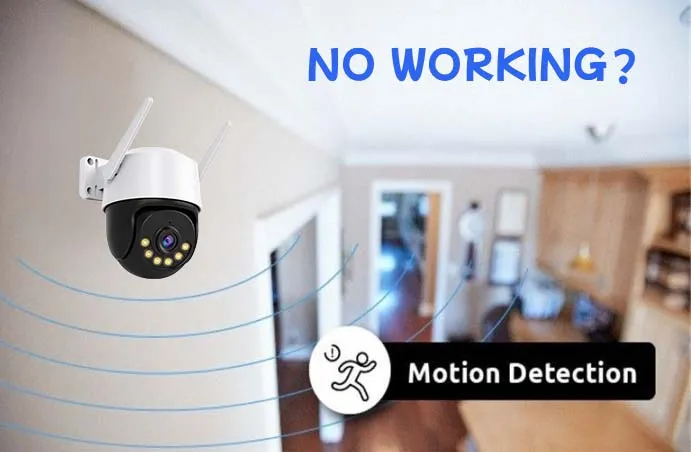
One of the most common reasons your ICSee camera isn’t detecting motion is because of its sensitivity settings. Imagine trying to catch a fish with a net that’s too loose; you won’t catch anything. The same goes for your camera’s motion sensitivity.
First, hop into your ICSee app. Go to Settings > Detection Settings > Motion Sensitivity and adjust the sensitivity level. A higher sensitivity means the camera will detect even the slightest movements, whereas a lower sensitivity setting will ignore smaller motions. Aim for a middle ground that balances false alarms and missing important events.
2. Reposition the Camera for Better Coverage
Ever tried to take a picture in low light and ended up with a blurry mess? Camera placement can be just as crucial. If your ICSee camera isn’t picking up motion, it might be because it’s not positioned correctly.
Consider these points: – Height and angle: A camera placed too high or low might miss motion. Aim for a height of around 7-9 feet. – Field of view: Ensure the camera’s lens is pointed towards high-traffic areas. – Obstructions: Make sure there are no objects like walls, plants, or furniture blocking the view.
3. Check and Update the App Software
Finally, modern tech loves a good update, and that includes your ICSee app. Software bugs are sneaky culprits that can disrupt your camera’s motion detection.
Steps to update: 1. Open the ICSee app on your mobile device. 2. Navigate to the app settings. 3. Look for an Update option, or head directly to your app store and check if an update is available.
Updating the app can patch bugs and improve performance, making sure motion detection works seamlessly.
General ICSee Camera Troubleshooting Tips
1. Regularly Update Firmware and App Software
Let’s face it: outdated software is the Achilles’ heel of most tech gadgets. For your ICSee camera, not updating firmware and app software can lead to all sorts of pesky issues. Firmware updates aren’t just optional; they’re essential. They fix bugs, improve functionality, and add new features. Imagine still operating on the same software from 2019! Yikes, right?
2. Perform Routine Maintenance and Clean the Camera
You wouldn’t let the dust settle on your TV screen, would you? The same principle applies to your ICSee camera. Routine maintenance and cleaning can make a world of difference. Grab a can of compressed air and a microfiber cloth to give your camera a good clean. This improves not just the lifespan but video quality too. Dust and residue can affect the camera’s sensors and lenses, leading to blurry and unreliable footage.
3. Secure a Stable Internet Connection
Your ICSee camera is only as good as its internet connection. A stable internet connection ensures a smooth video feed and timely notifications. Think of it as the backbone of all your camera operations. Dropped signals can render even the best camera useless. Run a quick speed test to see if your internet meets the required bandwidth for seamless camera performance. A laggy connection could mean the difference between catching an intruder or getting a grainy, delayed clip.
4. Utilize Customer Support and Online Resources for Complex Issues
Got a problem that you just can’t solve? Don’t sweat it! Complex ICSee camera troubleshooting can often require professional help. This is where customer support and online resources come into play. Dive into forums, FAQs, and even YouTube tutorials for solutions to intricate problems. Often, tech support has seen your issue a thousand times and can resolve it in a snap. Leveraging customer support can save you from a lot of headaches.
By following these tips, your ICSee camera will be the reliable guard dog you need. And guess what? Most of these fixes won’t take more than a few minutes of your time!