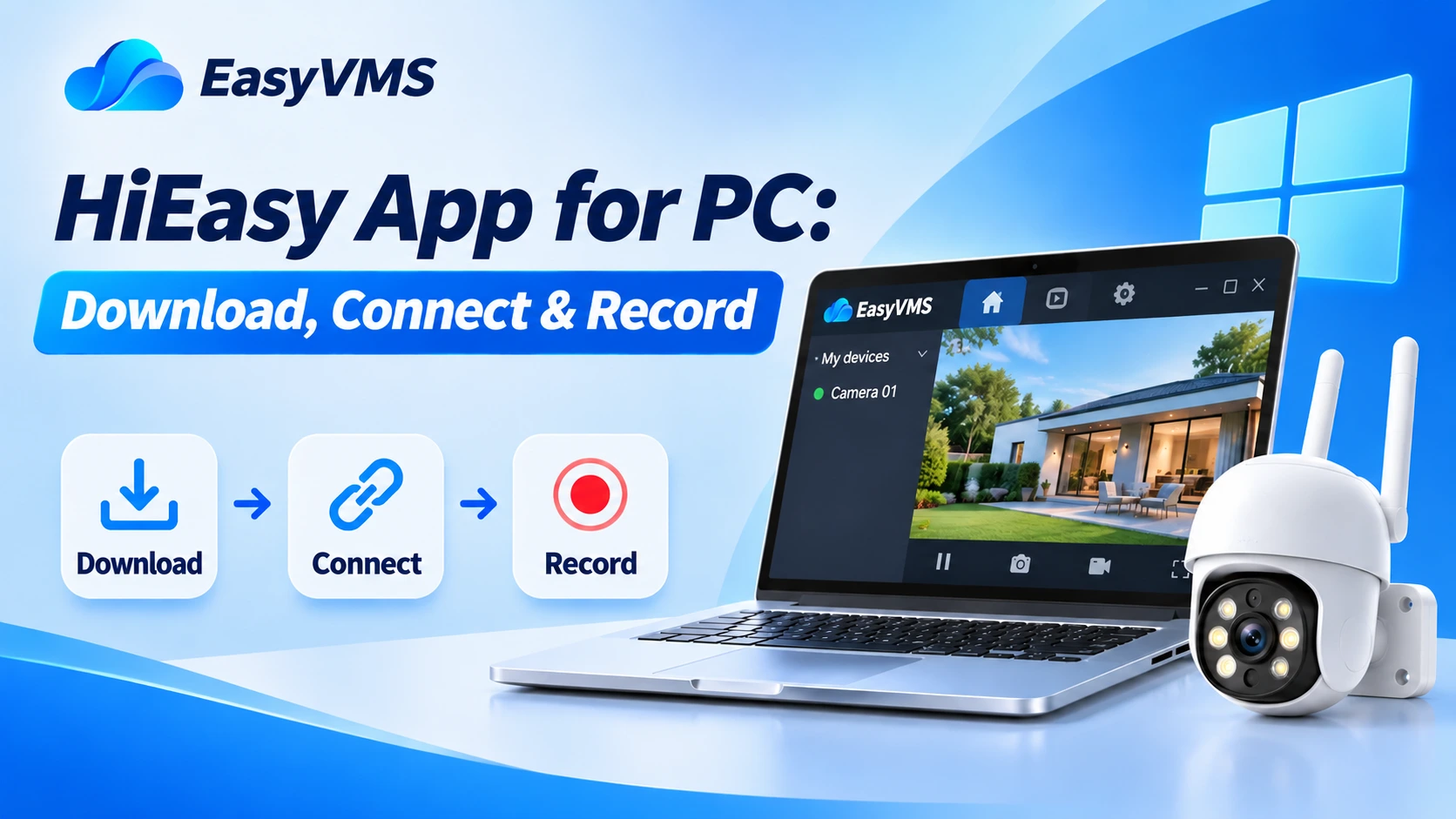
Want to use your HiEasy cameras on a Windows PC? EasyVMS is Ruision’s official Windows PC client for compatible HiEasy cameras, available from the Ruision official website.
In this guide, we’ll show you how to download and install EasyVMS, connect your cameras via Cloud QR Code Login or LAN Search, view live footage, and record and play videos on your PC. Each main process includes a video tutorial based on our actual testing.
What Is HiEasy App for PC?
HiEasy is primarily a mobile app, while EasyVMS lets you manage compatible cameras on a Windows PC. You can view live footage, choose different screen layouts, control supported PTZ cameras, and save recordings to your computer.
This guide covers two connection methods:
- QR Code Cloud Login: Sign in using your HiEasy mobile app to access cameras linked to your cloud account.
- LAN Search: Find and add a compatible WiFi camera through your local network.
Both methods are demonstrated using a HiEasy WiFi camera. In separate testing, we also accessed an online MS-6606 4G camera through HiEasy cloud login.
How to Download HiEasy App for PC on Windows
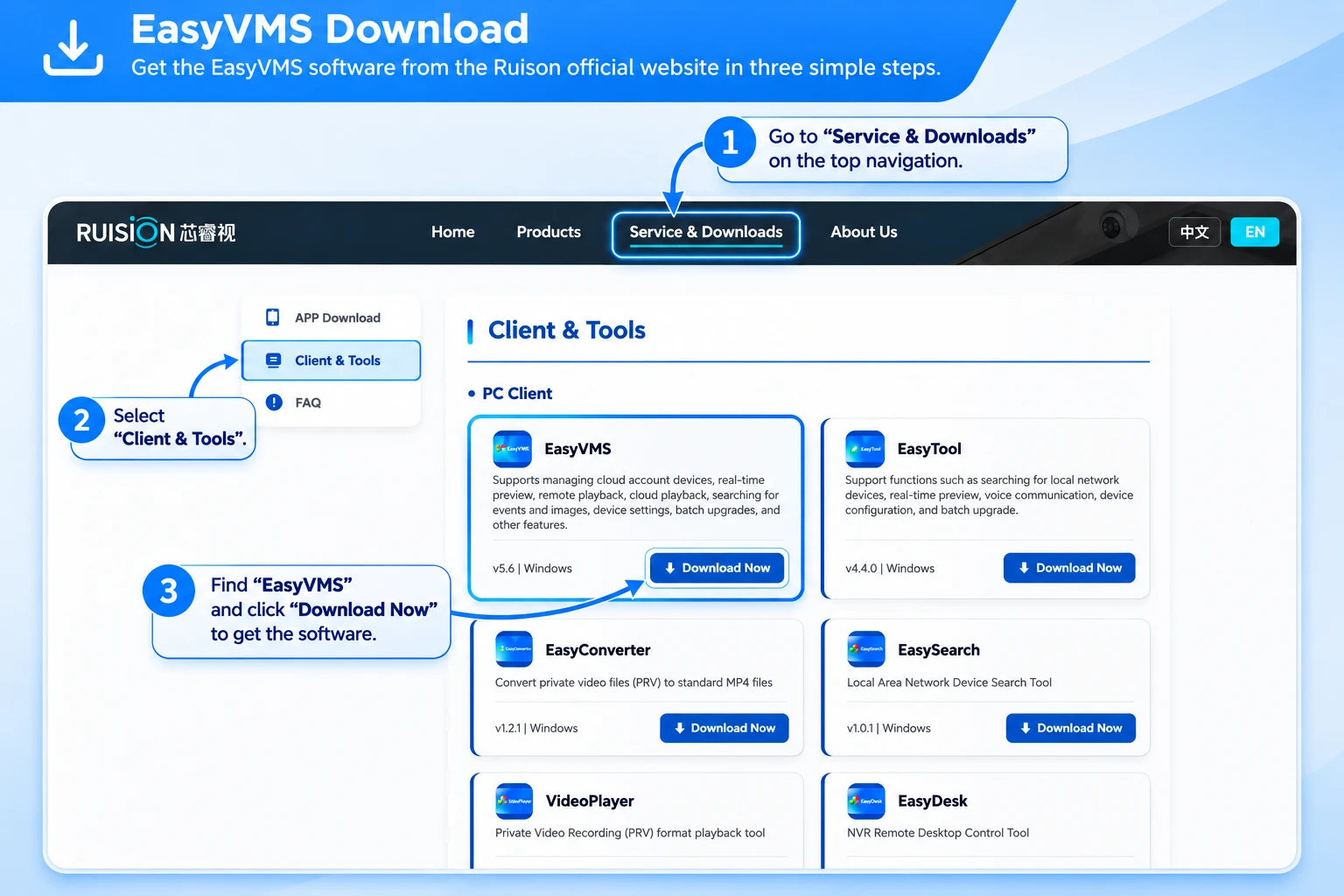
To get started, download the EasyVMS Windows client from the official Ruision website.
Step 1: Download EasyVMS
Visit the Ruision official download center.
From the navigation menu, select Service & Downloads → Client & Tools.
Under PC Client, find EasyVMS and click Download Now.
Step 2: Install the Software
Open the downloaded archive and double-click the EasyVMS setup file.
Choose your installation folder and follow the on-screen instructions.
Once installation is complete, launch EasyVMS.
If Windows requests network access permissions, review the request and select the appropriate settings.
Step 3: Open EasyVMS
The login screen provides two options:
- Local: Sign in to manage locally added devices.
- Cloud: Sign in with a supported cloud account or QR code authorization.
You can now connect your camera.
For other HiEasy software resources, visit our HiEasy App Download page.
Connect HiEasy Cameras via QR Code Cloud Login
If your camera is already connected and online in the HiEasy mobile app, you can sign in to EasyVMS using QR code authorization.
Note for 4G cameras: HiEasy 4G cameras can only be accessed in EasyVMS through Cloud Login, not LAN Search. Viewing or recording 4G camera footage on your PC may increase mobile data usage and related charges, depending on your data plan.
Step 1: Open Cloud Login
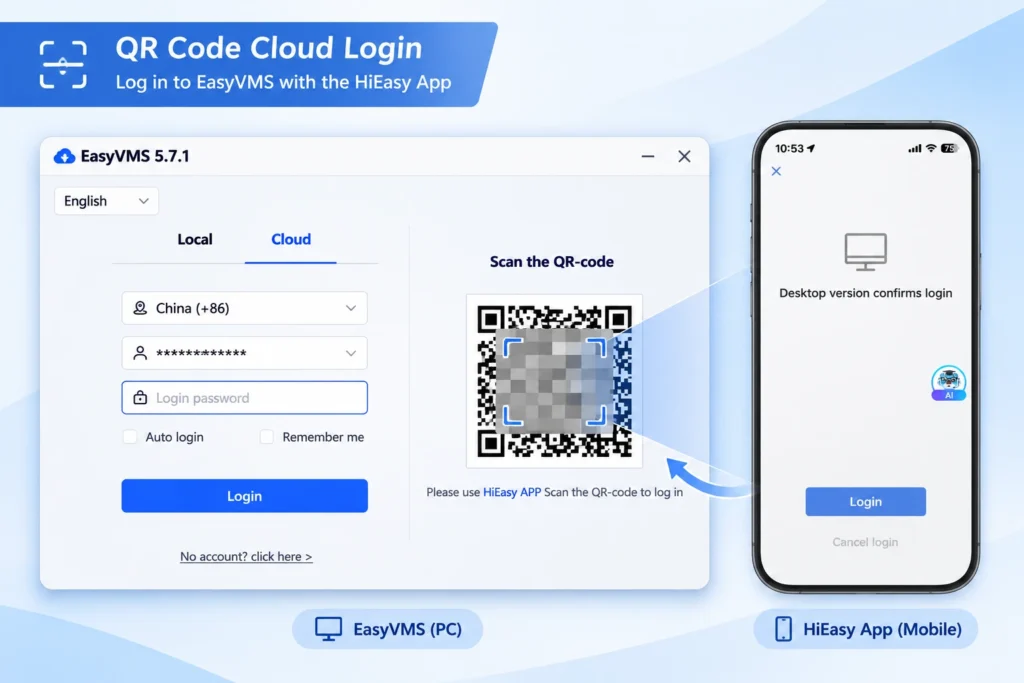
Launch EasyVMS and select Cloud on the login screen.
A QR code will appear on the right side.
Step 2: Scan and Authorize
Open the HiEasy app on your phone and scan the QR code.
Follow the instructions on your phone to authorize the login.
Once verification is complete, EasyVMS signs in to your cloud account.
Step 3: View Your Camera
Your linked camera will appear in the device list.
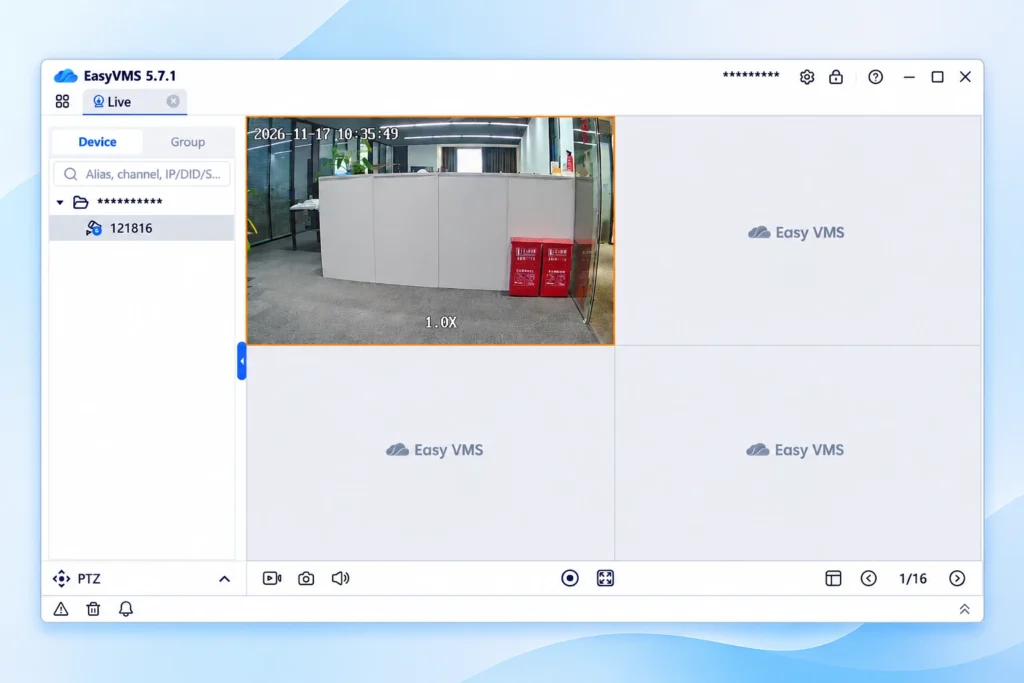
Open the camera to view its live video.
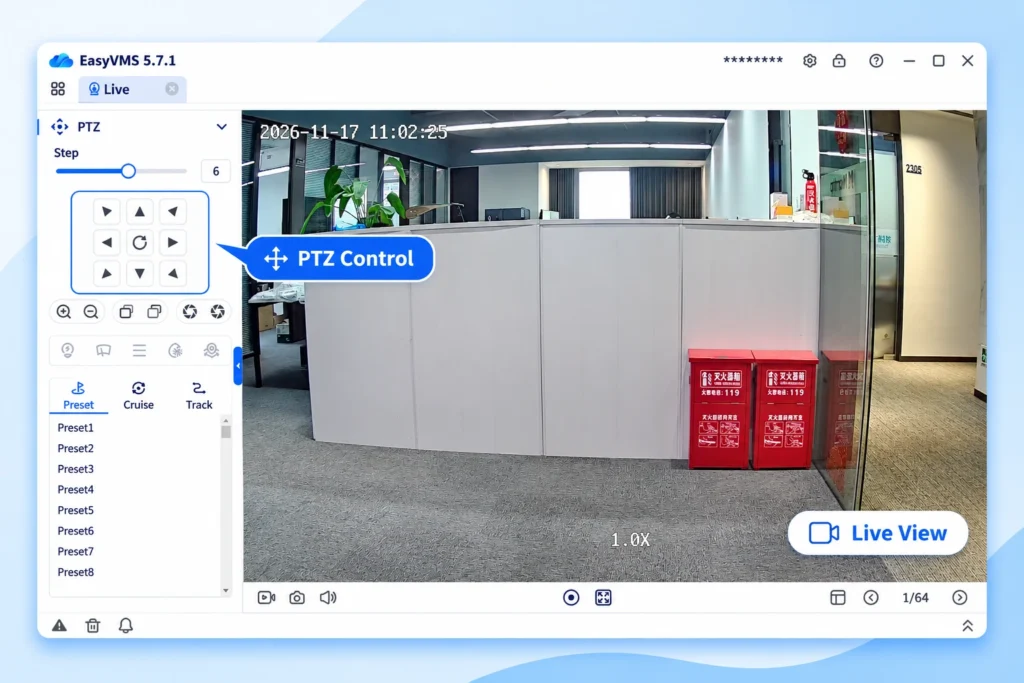
EasyVMS allows you to select different viewing layouts depending on the number of camera channels you want to display.
Since our tutorial uses only one camera, we select the single-screen layout.
If your camera supports PTZ, you can also adjust its viewing direction.
HiEasy App for PC: Connect via LAN Search
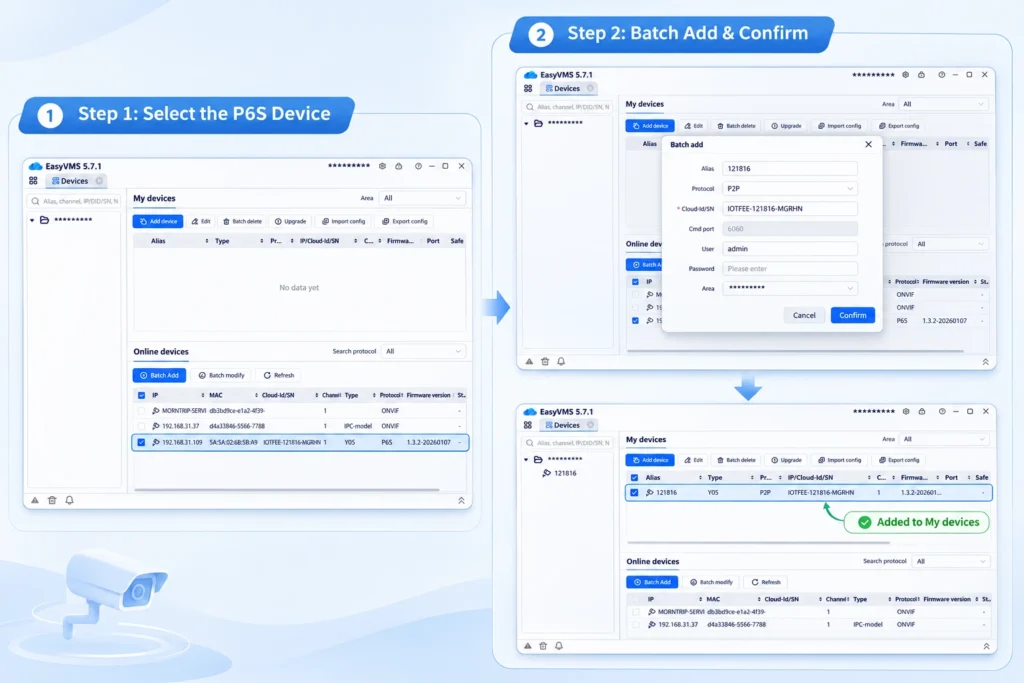
You can also connect a compatible HiEasy WiFi camera through your local network without using a phone during the PC device addition process.
Before starting, make sure your camera is already configured and connected to the same reachable local network as your computer.
Step 1: Sign In Locally
Open EasyVMS and select Local.
In our test, we use the default Local login username admin and leave the password field blank. Our Windows PC connects via Ethernet, while the MS-6607D WiFi camera connects to the same local network over 2.4GHz WiFi.
Click Login to continue.
Step 2: Search for Your Camera
On the home screen, click Devices.
Under Online devices, EasyVMS displays compatible cameras detected on your local network.
Find your WiFi camera in the list.
Step 3: Add the Camera
You can add a camera in either of these ways:
- Batch Add (shown in our video): Select the checkbox next to your camera and click Batch Add.
- Double-click: Double-click a camera in the Online devices list to open its individual add-device window.
Review the automatically filled device information and click Confirm. There is no need to change the default settings, including the protocol. In our MS-6607D test, EasyVMS displayed P6S by default.
Once successfully added, the camera appears under My devices.
Step 4: Open Live View
Select Live and double-click the camera to open its live video.
Choose the single-screen layout for a clearer view.
You can also use PTZ controls if supported by your camera.
QR Code Login Vs. LAN Search
| Method | Requirements | Best For |
|---|---|---|
| QR Code Login | HiEasy mobile app and supported cloud account | Accessing compatible WiFi and 4G cameras linked to a HiEasy cloud account |
| LAN Search | Compatible WiFi camera and reachable local network | Adding cameras directly from a Windows PC |
Both methods can provide live viewing, but camera compatibility and available features may vary.
How to Record Videos with EasyVMS
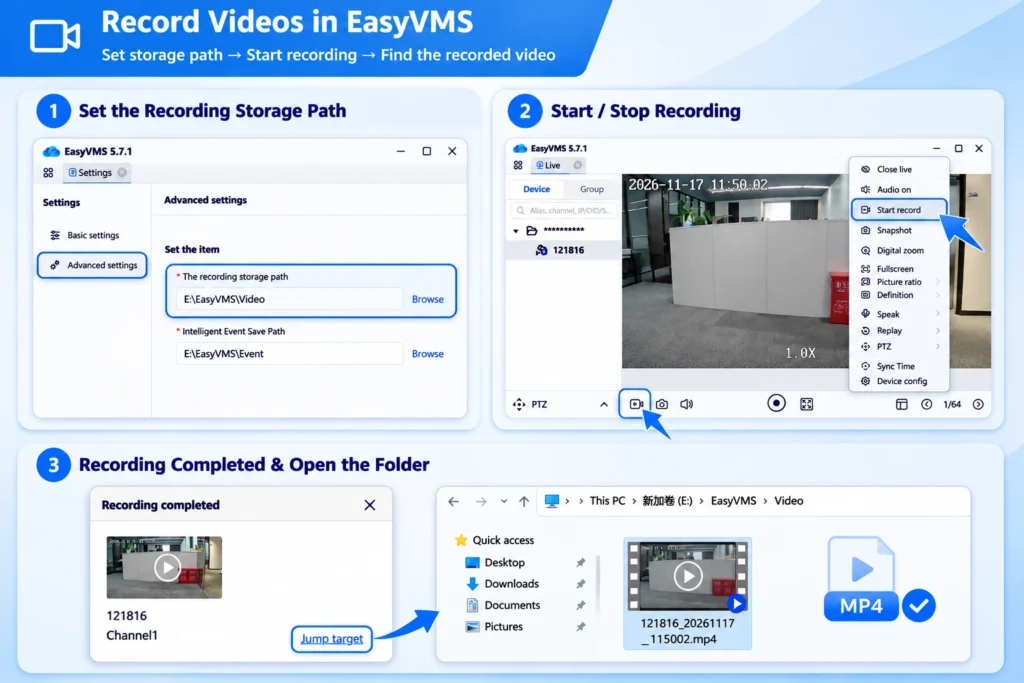
After connecting your camera, you can manually record live video directly to your computer.
Step 1: Check the Recording Folder
Open Settings → Advanced settings.
Find The recording storage path.
Keep the current folder or click Browse to select another location.
In our demonstration, recordings are saved to: E:\EasyVMS\Video
Step 2: Start Recording
Return to Live and open your connected camera.
Right-click the camera preview and select Start record.
EasyVMS will begin recording the selected camera channel.
Step 3: Stop Recording
When you’re finished, right-click again and select Stop record.
A Recording completed message will appear.
Click Jump target to open the folder containing your saved recording.
How to Find and Play Saved MP4 Videos
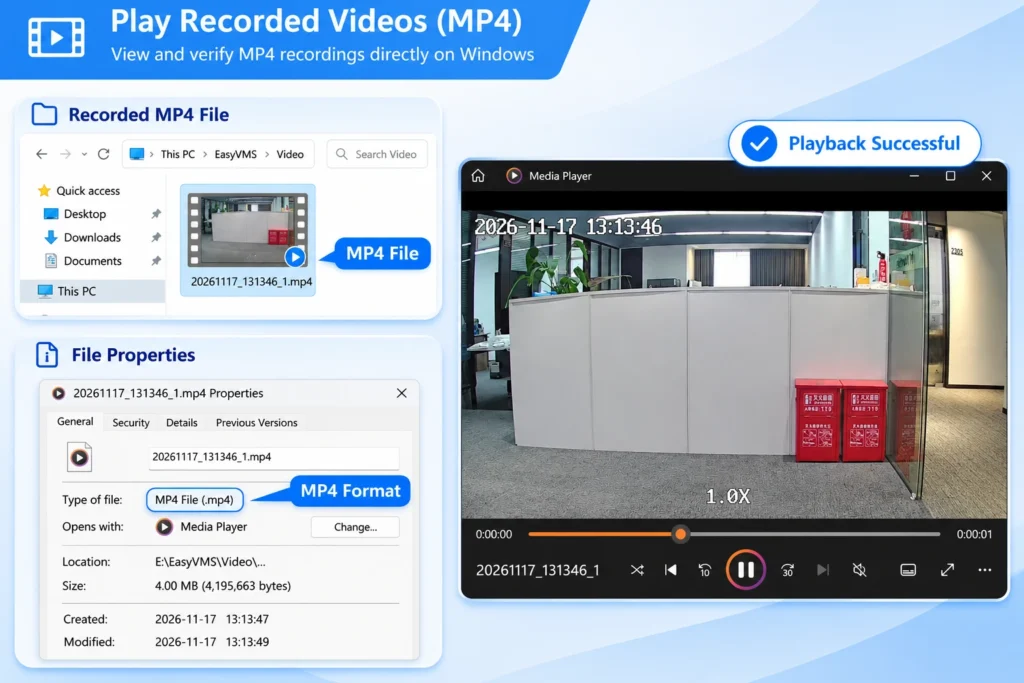
After recording, you can open the saved video through the folder displayed by Jump target.
Alternatively, navigate to your configured recording directory using Windows File Explorer.
Double-click the recording to play it with a compatible media player.
In our demonstration, the video opens successfully in Windows Media Player.
To check the file format, right-click the recording and select Properties.
Our test recording is saved in MP4 format, so it can be played directly without installing additional playback software.
Note: MP4 is the format confirmed in our demonstration. Other recording types or software versions may produce different file formats.
HiEasy App for PC: PRV Files and EasyConverter
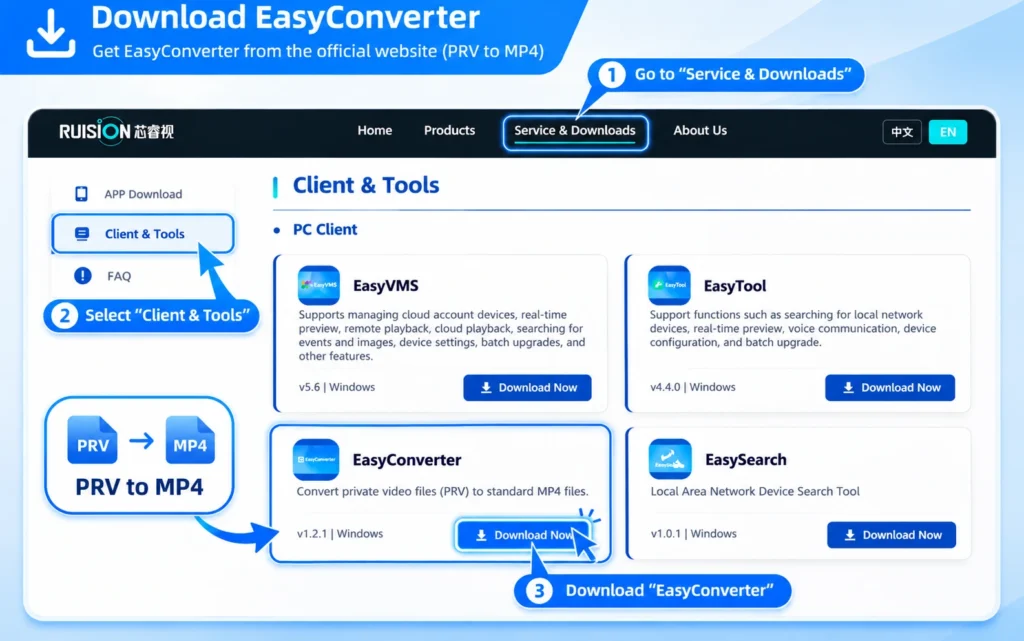
Some EasyVMS recordings may use the proprietary PRV format.
For supported PRV files, Ruision provides two tools:
- VideoPlayer: Plays PRV recordings.
- EasyConverter: Converts supported PRV videos into MP4 files.
To download EasyConverter, visit the official Ruision website and open:
Service & Downloads → Client & Tools
Find EasyConverter and click Download Now.
Official download center: https://www.ruision.com/downloads?tab=app
Our video demonstrates how to download EasyConverter, rather than the complete conversion process.
If your EasyVMS recording is already an MP4 file and plays normally, no conversion is needed.
EasyVMS(HiEasy APP for PC) FAQs
Why Can’t EasyVMS Find My HiEasy WiFi Camera?
If your camera doesn’t appear under Online devices, make sure it is powered on and connected to the same reachable local network as your computer.
Click Refresh to search again. Also check whether your firewall, router isolation settings, or camera compatibility might prevent device discovery.
What Should I Do If QR Code Login Fails?
Make sure your phone has an internet connection and you’re signed in to the correct HiEasy account.
If the QR code has expired, reopen the Cloud login screen and scan the new code. Follow the authorization instructions in the mobile app.
Can EasyVMS Continue Recording After I Close the Software?
Manual recording through EasyVMS requires the Windows client to remain running and connected to the camera.
Closing EasyVMS stops the PC-based recording process. Camera-side recording to an SD card or cloud storage is a separate function that depends on your device and settings.
Can I Connect a HiEasy 4G Camera to EasyVMS?
Yes. We verified that an online HiEasy MS-6606 4G camera can be accessed on Windows through EasyVMS using the same HiEasy cloud account.
Open EasyVMS, select Cloud, and use the HiEasy mobile app to scan the QR code and authorize login. Your linked 4G camera will then appear in EasyVMS.
HiEasy 4G cameras cannot be added through LAN Search. Viewing or recording 4G footage on your PC may use additional mobile data. Compatibility with other 4G models should be confirmed individually.
EasyVMS provides a practical way to access compatible HiEasy cameras on Windows, connect WiFi devices, and record and play videos locally.
For more software resources, visit our HiEasy App Download page. You can also explore our HiEasy Cameras for home, office, and commercial monitoring applications.