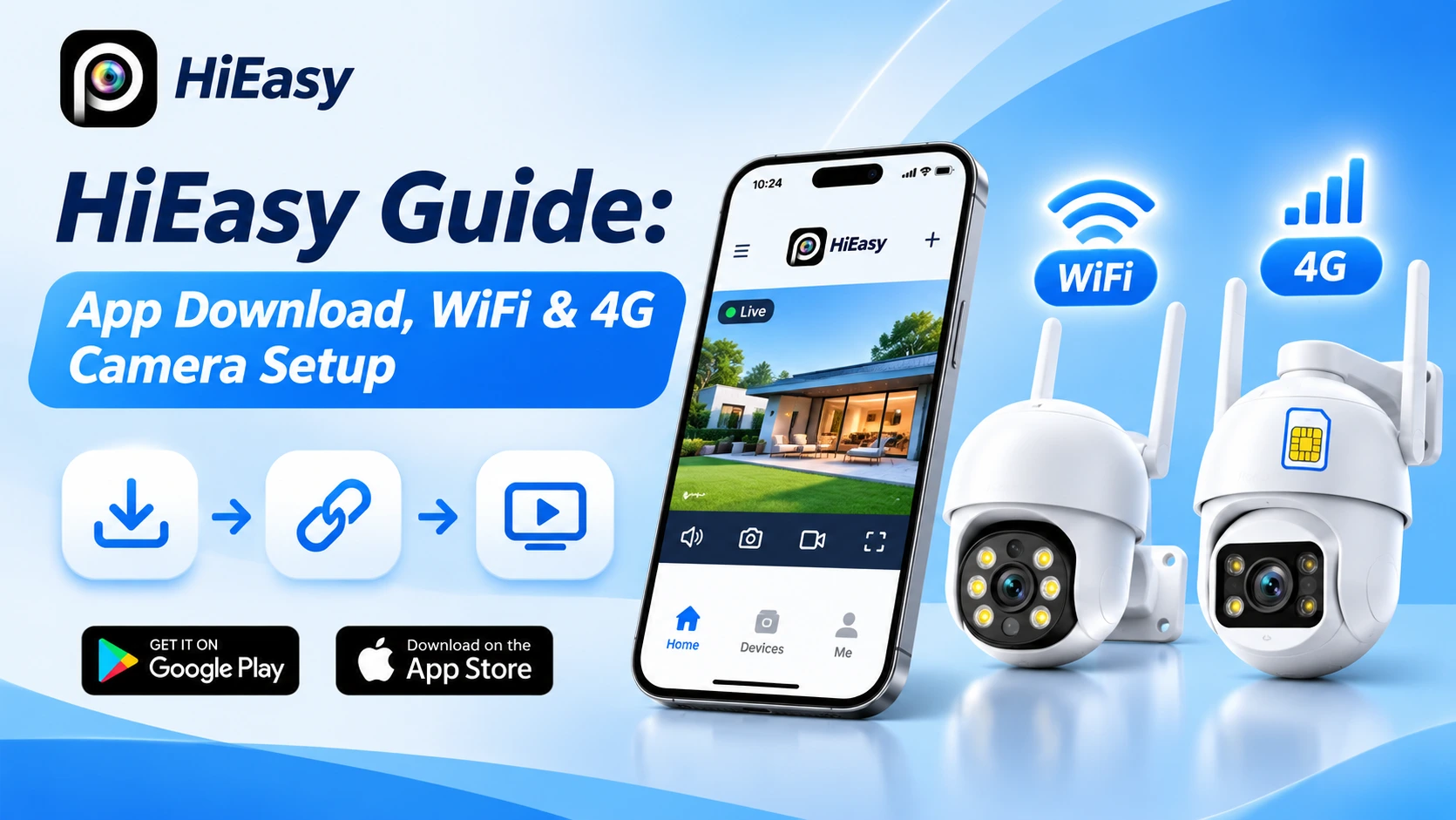
This HiEasy guide covers app download, email registration, WiFi and 4G camera setup, and password recovery. All five video tutorials were recorded by our team using real HiEasy cameras. We successfully added the MS-6607D-WIFI and MS-6606, viewed live video, and demonstrated PTZ control. Steps and available features may vary by camera model, firmware, and HiEasy app version.
What Is HiEasy?
HiEasy is a mobile application used to connect, monitor, and manage compatible security cameras. It provides access to camera functions through an Android phone or iPhone, allowing users to manage supported devices without relying on a dedicated monitoring screen. Depending on the connected camera and its available features, HiEasy can provide live video, recording playback, audio communication, and device settings.
What Can You Do With the HiEasy App?
HiEasy offers several useful functions for compatible security cameras:
- Live View: Access real-time video from connected cameras.
- Device Management: Add compatible cameras and manage them through the device list.
- Video Playback: Review available recordings when supported storage and recording functions are enabled.
- Two-Way Audio: Communicate through cameras equipped with compatible microphones and speakers.
- Push Notifications: Receive supported alerts and event notifications.
- Camera Settings: Access available camera configuration and monitoring options.
Feature availability depends on the camera hardware, firmware, app version, and any applicable service requirements.
Which Security Cameras Can Use HiEasy?
HiEasy can be used with different types of compatible security cameras, including WiFi and 4G models. The main difference is how each camera connects to the network.
| Camera Type | Network Connection | Main Setup Requirement |
|---|---|---|
| WiFi Camera | Compatible wireless router | WiFi network and password |
| 4G Camera | Cellular data network | Activated SIM card and mobile data service |
In this guide, the WiFi setup is demonstrated using the MS-6607D-WIFI, while the 4G setup uses the MS-6606. These demonstrations provide practical examples rather than universal instructions for every HiEasy-compatible camera. For available models, see our HiEasy camera collection.
Before You Start: HiEasy Setup Requirements
Before adding a camera to HiEasy, prepare the necessary equipment and check that your camera has a working power source.
What You Need for WiFi Camera Setup
For the WiFi setup demonstrated with the MS-6607D-WIFI, prepare:
- A compatible WiFi security camera.
- An Android phone or iPhone with HiEasy installed.
- A registered HiEasy account.
- A working wireless network supported by your camera.
- The correct WiFi password.
- Access to the QR code printed on the camera.
- Bluetooth enabled on your phone if using compatible automatic device discovery.
If your camera has previously been configured, it may need to be reset before connecting again.
What You Need for 4G Camera Setup
For the MS-6606 4G camera, prepare:
- A compatible 4G security camera.
- An activated SIM card with an available mobile data plan.
- Cellular coverage supported by the camera and SIM card.
- A suitable power supply.
- A phone with HiEasy installed.
- Access to the camera’s device QR code.
Important: Check SIM card compatibility and supported cellular network bands before attempting to connect a 4G camera. Network compatibility can vary by camera model, country, and mobile operator. Once everything is ready, you can begin installing and configuring HiEasy.
How to Download and Install the HiEasy App
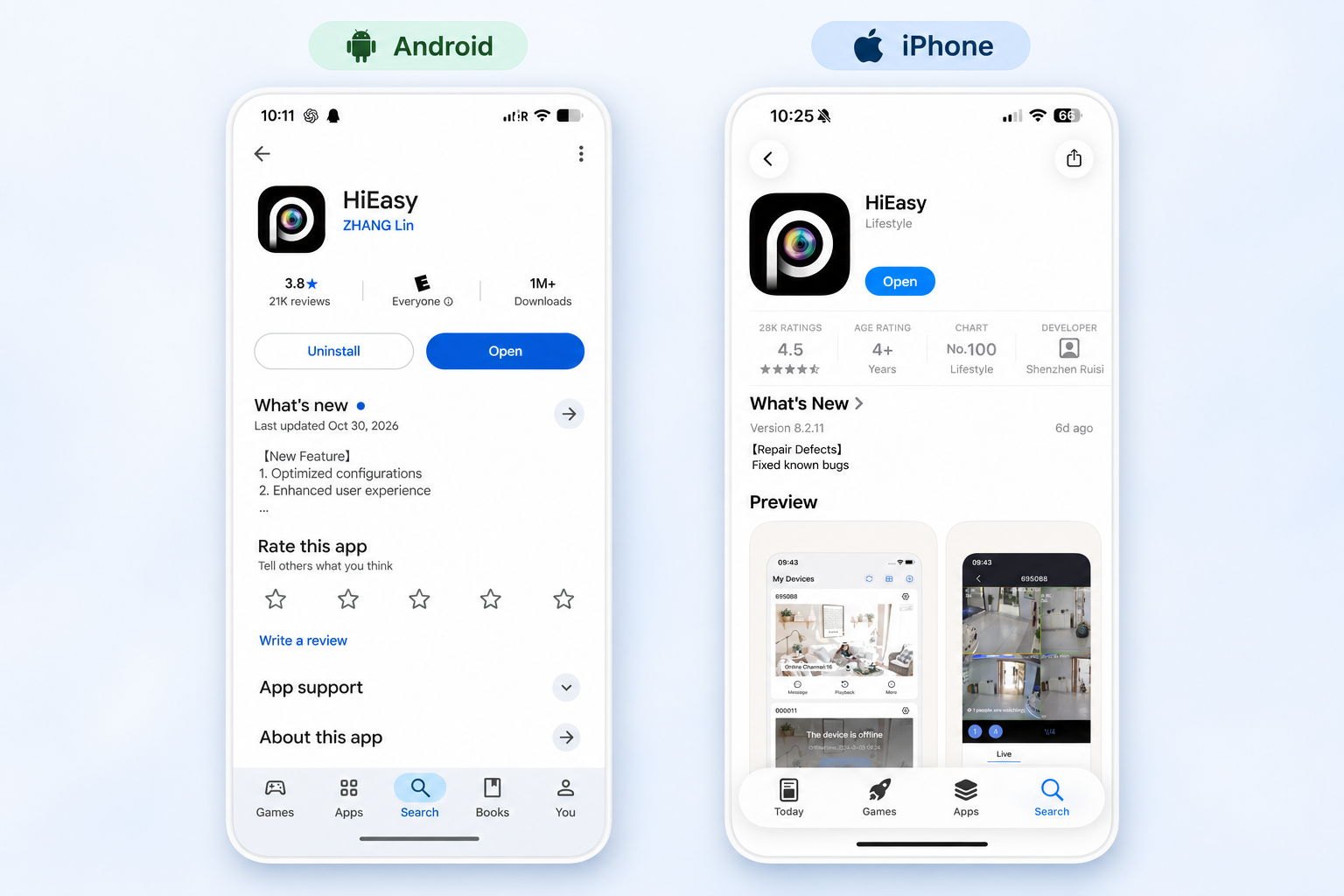
HiEasy is available for Android and iPhone. You can find the application through Google Play or the Apple App Store. For download links and platform options, visit our HiEasy App Download page.
Download HiEasy on Android
To install HiEasy on an Android device:
- Open the Google Play Store.
- Search for HiEasy.
- Locate the application in the search results.
- Check its name, icon, and developer information to verify that you have selected the correct app.
- Tap Install.
- Wait for the installation to finish.
- Tap Open to launch HiEasy.
When the login screen appears, the installation is complete. You can now sign in using an existing account or create a new one.
Download HiEasy on iPhone
The installation process is similar on iPhone:
- Open the App Store.
- Search for HiEasy.
- Locate the application and check its details.
- Tap Get.
- Confirm the download if prompted.
- Wait for the installation to complete.
- Tap Open to launch HiEasy.
After opening the app, you can proceed to account registration or login. Video Tutorial: How to Download and Install HiEasy on Android and iPhone
 Alternative Download Method: Scan the QR Code in Your Camera Manual Some compatible security cameras include an app download QR code in their instruction manuals. On a supported phone, you can scan the code with your camera app, open the provided link, and verify the HiEasy app listing before installation. In our Android demonstration, the QR code directs the phone to Google Play.
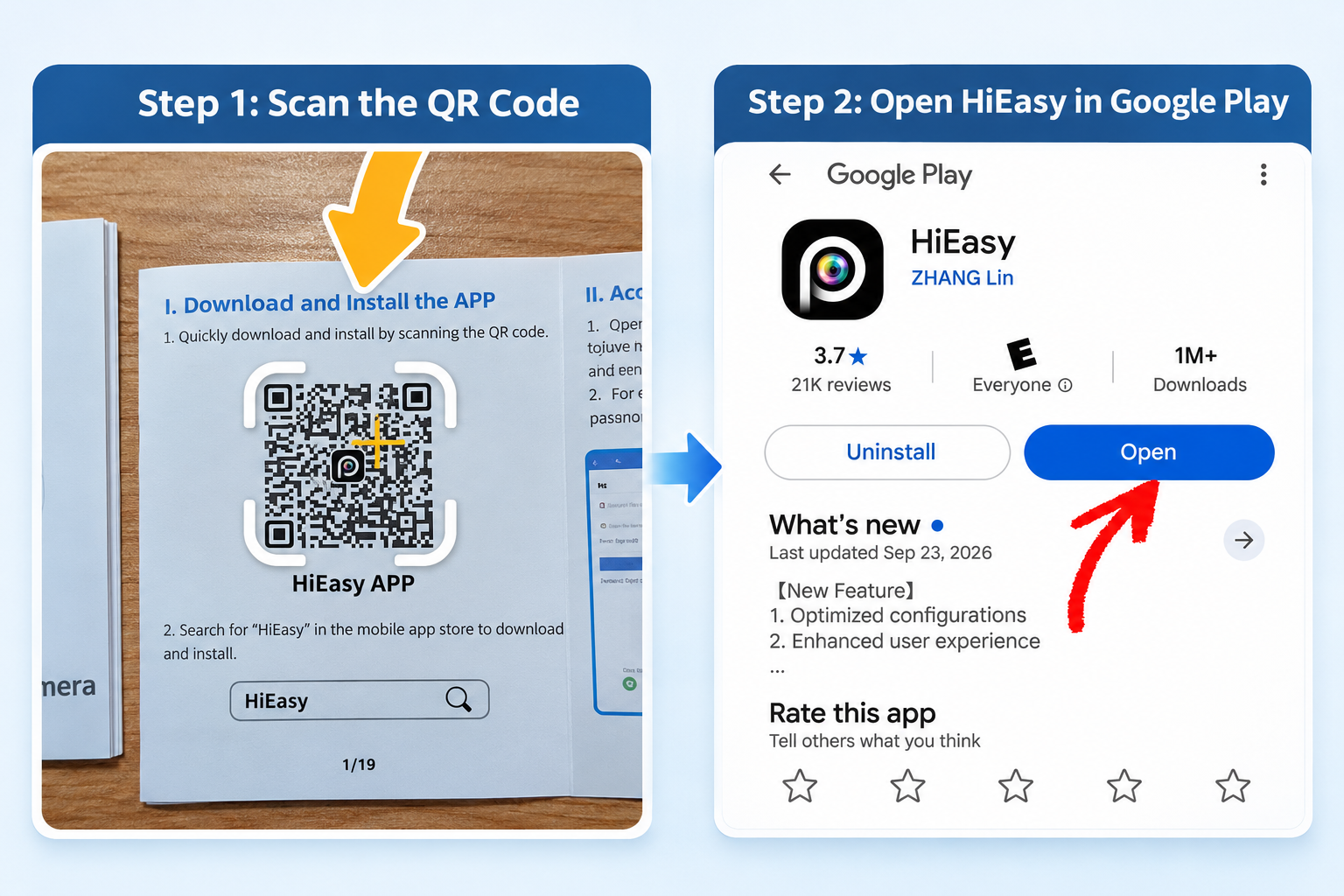 Important: The app download QR code in the manual is different from the device QR code used to add a camera to HiEasy. Make sure you scan the correct code for your intended task.
How to Register a HiEasy Account
After installing HiEasy, you’ll need an account to use the account-based device management workflow demonstrated in this guide. HiEasy provides registration options for email addresses and phone numbers in the demonstrated app version. The following instructions focus on email registration.
Create a HiEasy Account Using Email
- Open the HiEasy app.
- On the login screen, tap Sign up now.
- Select your country or region.
- Enter a valid email address.
- Tap Get code to request a verification code.
- Check your email inbox for the verification message.
- Enter the code into HiEasy.
Make sure you use an email address you can access, as it will also be needed for the email-based password recovery process demonstrated later in this guide.
Set Your HiEasy Account Password
After verifying your email address:
- Create a password containing 8–16 characters, including both letters and numbers, as required by the demonstrated app version.
- Enter the password again to confirm it.
- Review the User Agreement and Privacy Policy.
- Accept the required terms.
- Tap Sign-up.
Once registration is successful, HiEasy opens the My Devices screen. This is where you can begin adding compatible security cameras. Video Tutorial: How to Register a HiEasy Account Using Email
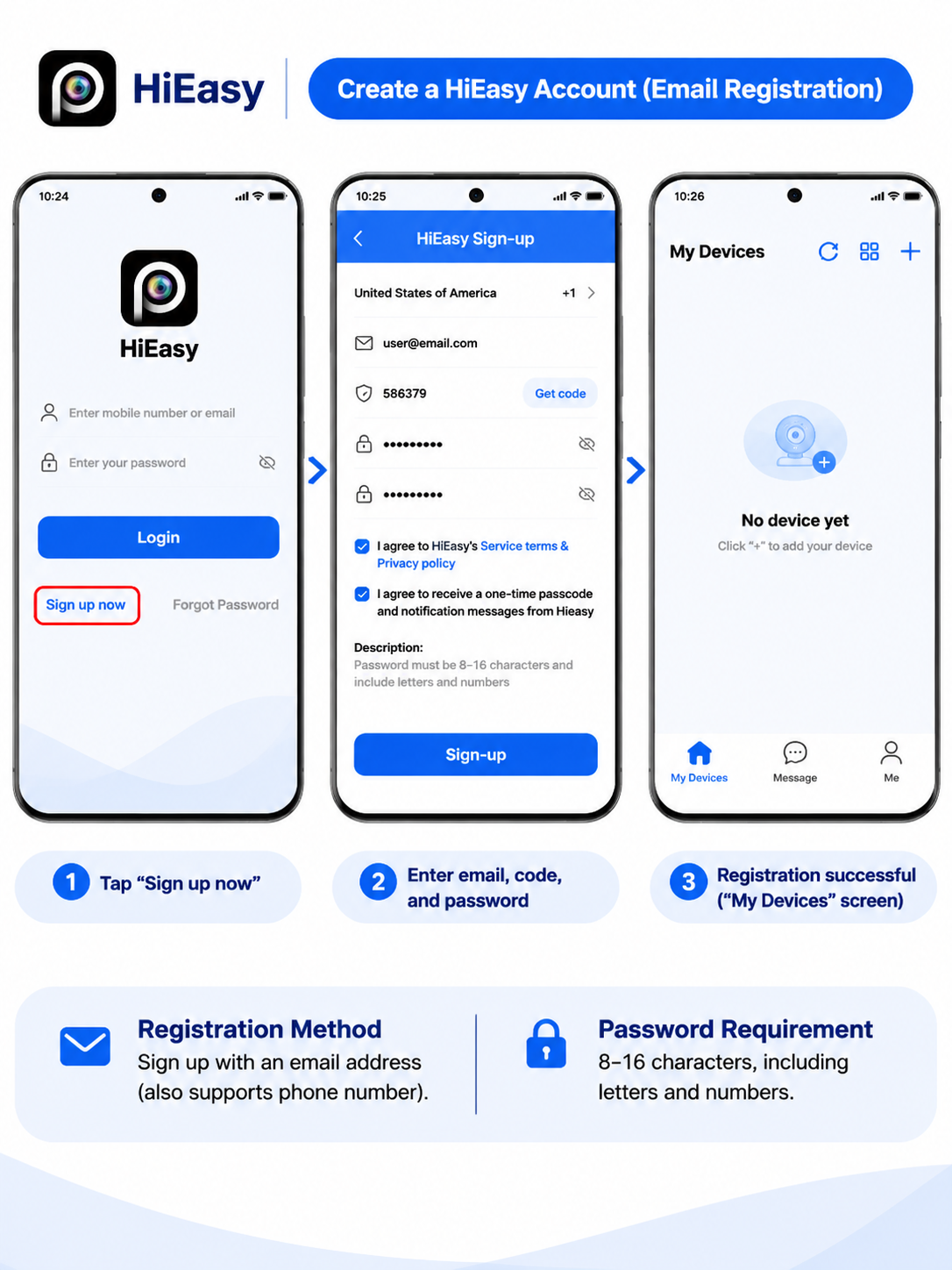 If you already have an account, return to the login screen and enter your registered credentials instead of creating another account.
How to Connect a WiFi Camera to HiEasy
This section demonstrates how to connect the MS-6607D-WIFI security camera to HiEasy. The setup involves preparing the camera, identifying it through the app, configuring a compatible WiFi network, and checking the live video feed.
Step 1: Reset the WiFi Camera If Needed
If your camera has previously been connected to an application, resetting it may be necessary before setting it up again. For the MS-6607D-WIFI demonstrated in our video:
- Keep the camera powered on.
- Locate the access panel on the back of the camera.
- Open the panel to find the SD card slot and reset button.
- In the demonstrated orientation, the SD card slot is on the left, while the small round reset opening is on the right.
- Gently press and hold the reset button using a suitable reset pin.
- Allow the camera to complete its reset process.
The camera should then be ready for a new connection attempt. 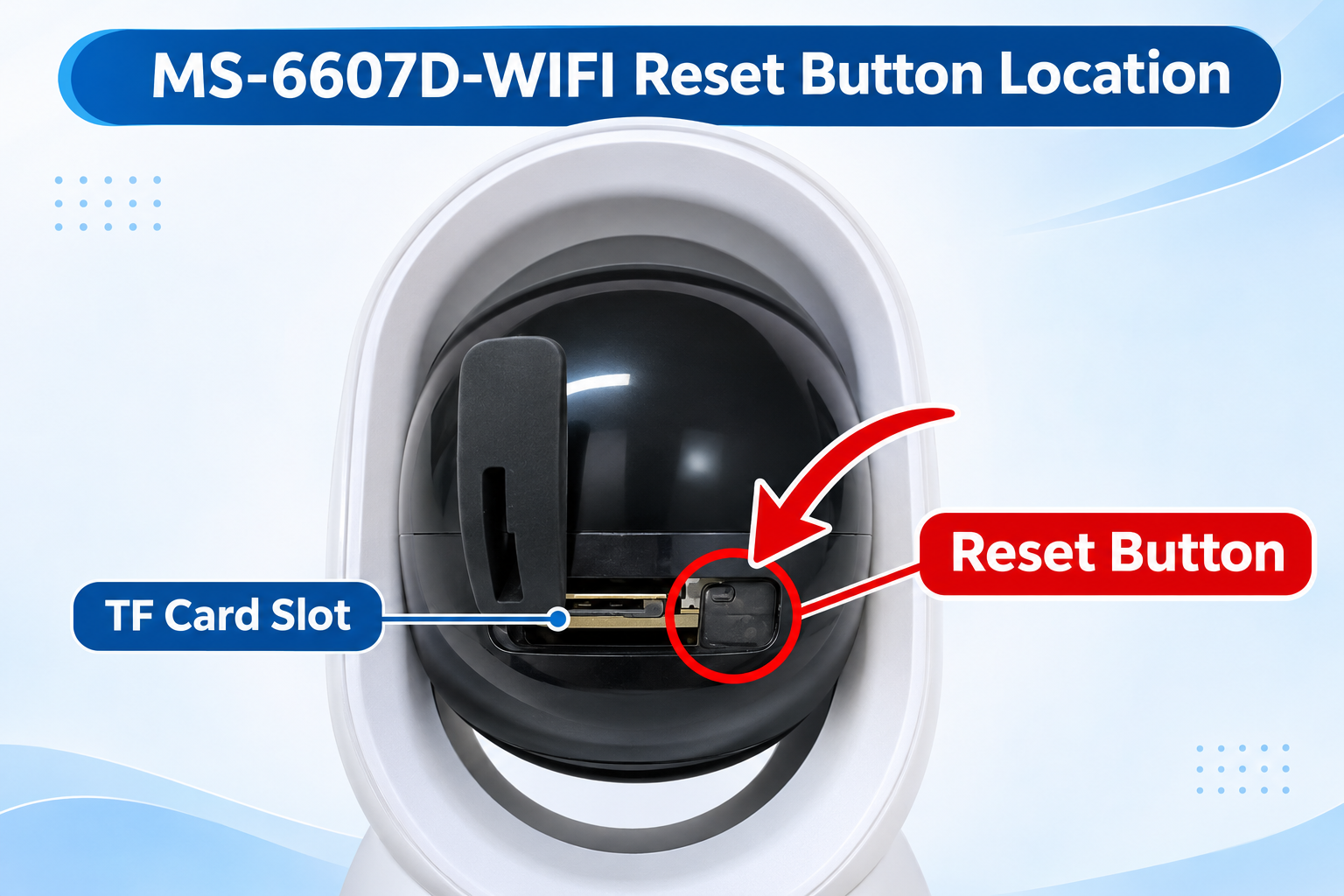 Note: Resetting is optional and may not be necessary for a new camera. Follow the reset instructions for your exact device model rather than assuming all cameras use the same procedure.
Step 2: Find or Scan Your Camera in HiEasy
Open HiEasy on your phone and make sure Bluetooth is enabled. During the initial setup, HiEasy may automatically discover nearby compatible cameras and display a device selection prompt. If the detected device is the correct camera, follow the available on-screen instructions. Alternatively, you can identify the camera by scanning its device QR code. To use QR code identification:
- Locate the QR code printed on the camera body.
- Choose the appropriate device scanning option in HiEasy.
- Point your phone at the camera’s QR code.
- Wait for HiEasy to recognize the device.
- Continue with the connection instructions.
Scanning the device QR code can help you identify the intended camera when multiple compatible devices are nearby. 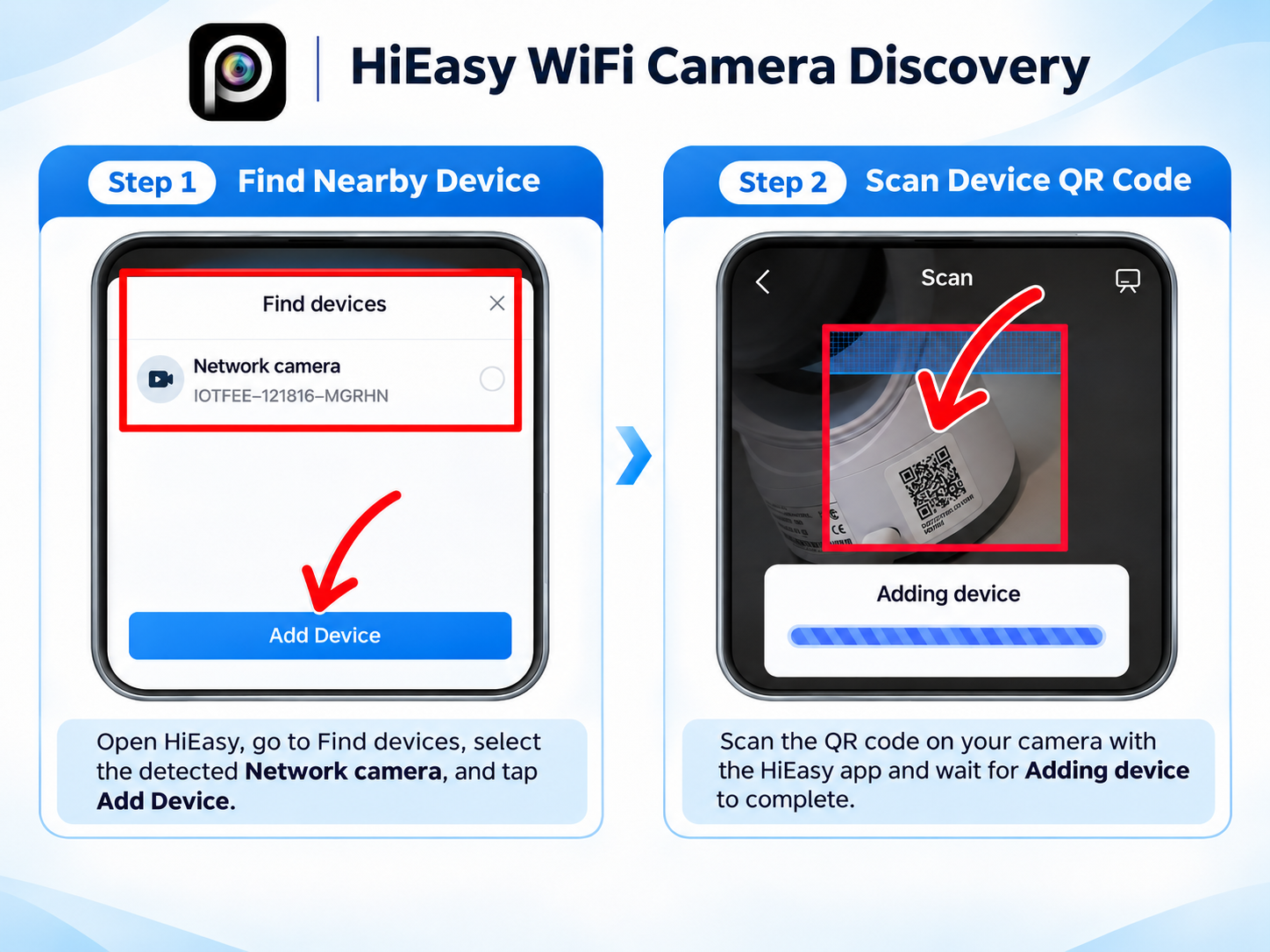
Step 3: Configure the WiFi Connection
After HiEasy recognizes the camera, follow the prompts to connect it to a wireless network. The demonstrated app provides information about supported WiFi frequencies, such as 2.4GHz or 5GHz, depending on the device. In the MS-6607D-WIFI tutorial, the connection is demonstrated using a 2.4GHz WiFi network. To continue:
- Check the WiFi frequency supported by your camera.
- Select a compatible network.
- Enter the correct WiFi password.
- Proceed with the on-screen connection instructions.
An incorrect password or unsupported WiFi frequency can prevent successful setup. Do not assume that every HiEasy-compatible camera supports 5GHz simply because the app displays a frequency option. 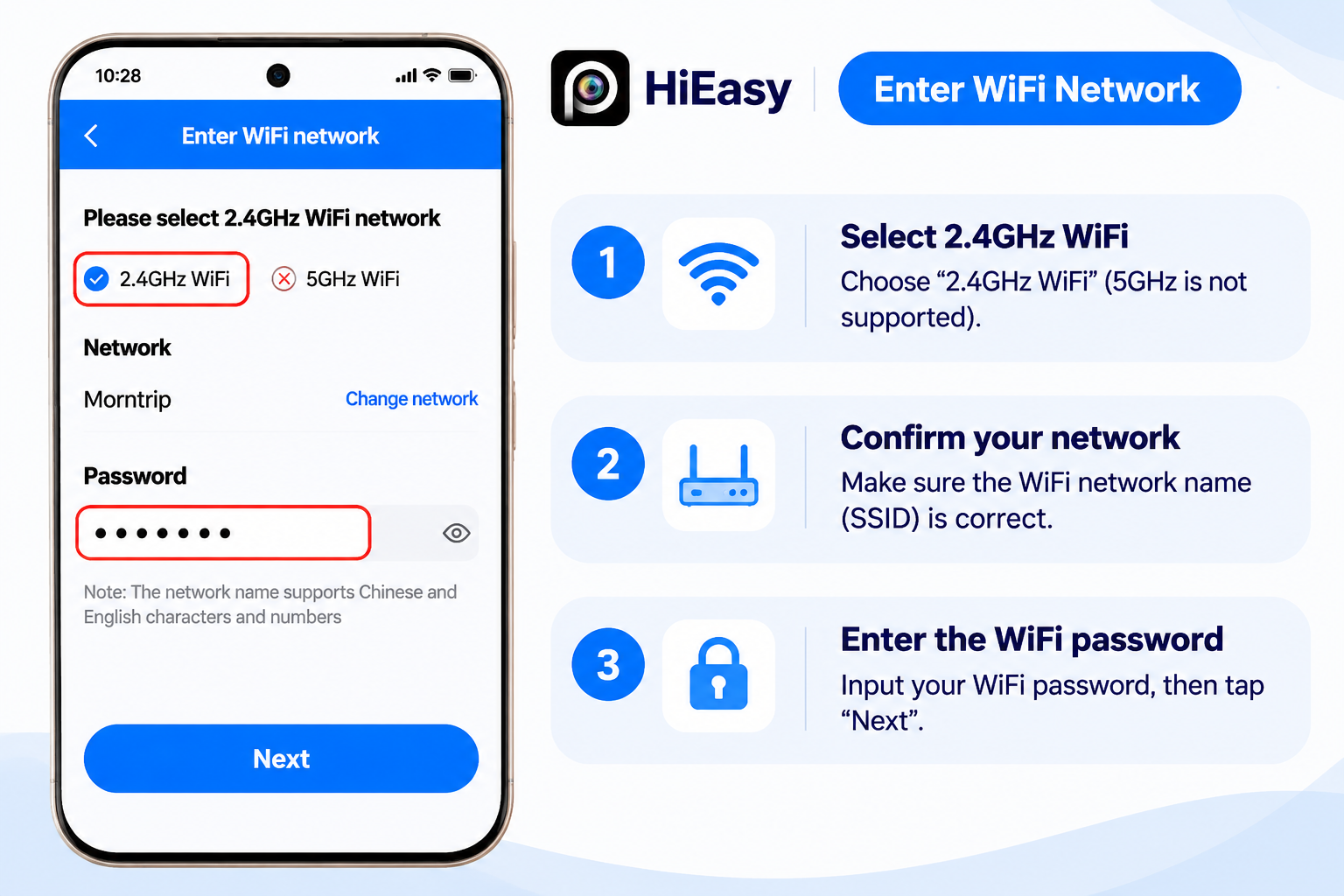
Step 4: Complete Setup and Verify Live View
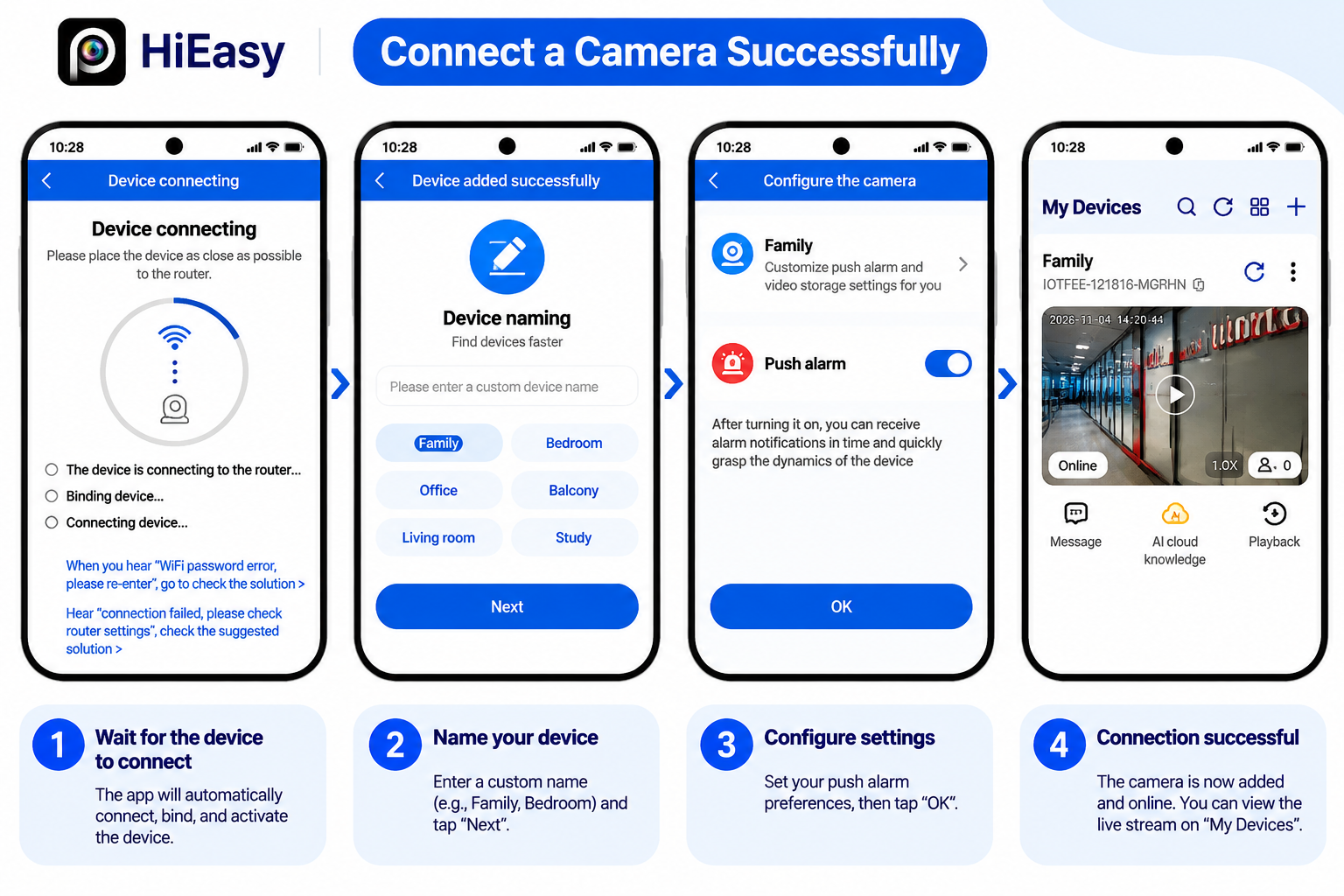
Keep the camera powered on while HiEasy completes the connection process. Once the camera has been added successfully:
- Open the camera from your device list.
- Wait for the live video feed to load.
- Confirm that the camera is online.
- Check that the video is displaying correctly.
In our demonstration, the MS-6607D-WIFI completes its WiFi connection and displays live video through HiEasy. This confirms that the initial setup was successful in the demonstrated environment. Video Tutorial: How to Connect a WiFi Camera to HiEasy Demonstration Model: MS-6607D-WIFI
How to Connect a 4G Camera to HiEasy
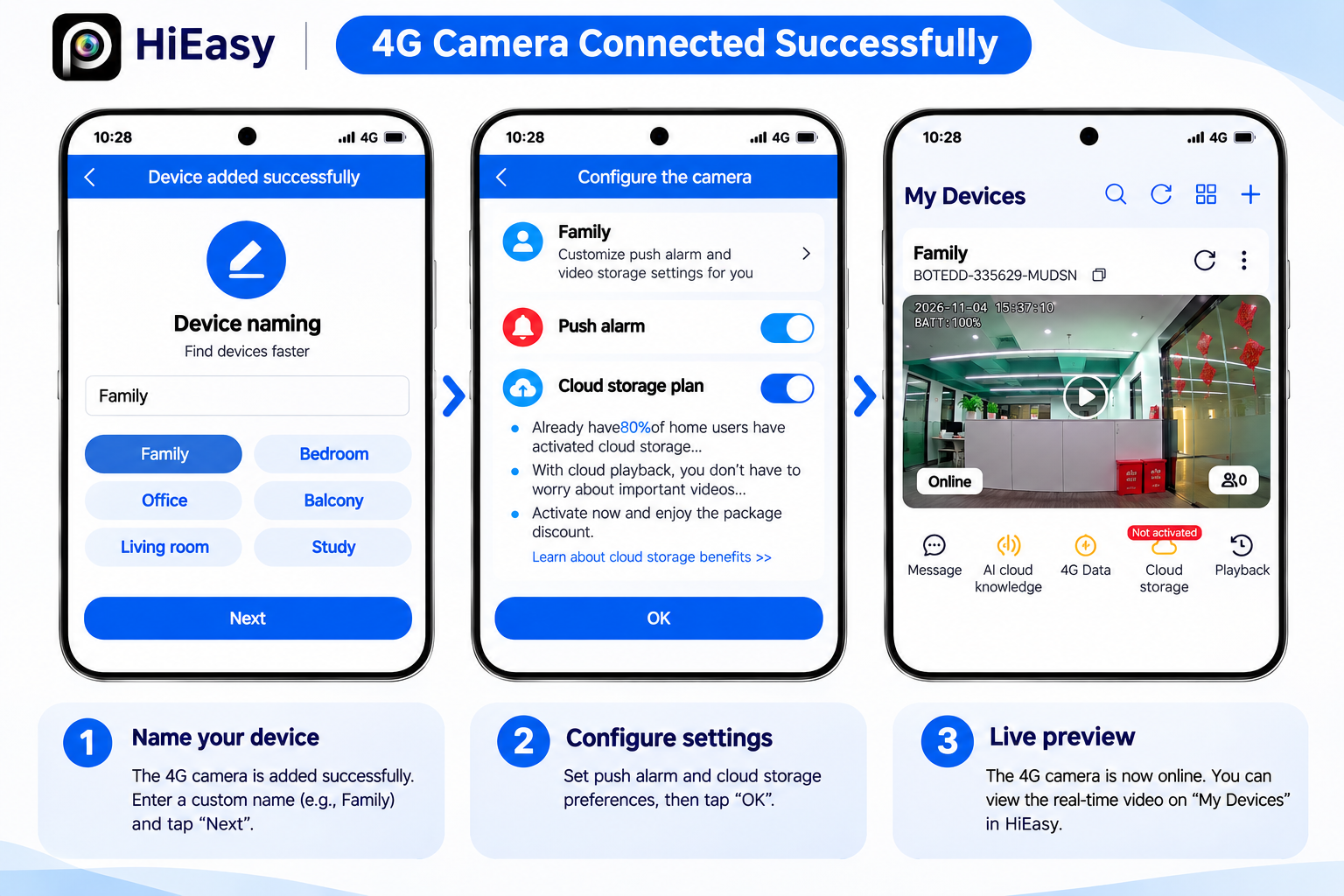
A 4G security camera connects through a compatible cellular network rather than relying on a conventional WiFi router. This makes 4G connectivity useful for certain outdoor, remote, and temporary monitoring applications where fixed internet access may be unavailable. In this tutorial, we use the MS-6606 4G security camera to demonstrate how to add a compatible cellular camera to HiEasy.
Step 1: Prepare an Activated SIM Card
Before starting the connection process, make sure the camera contains a compatible SIM card. The SIM card should have an active mobile data service and be compatible with the camera’s supported network bands. In our demonstration, an activated SIM card with an available data plan has already been inserted into the MS-6606. If your camera does not have a SIM card installed, follow its user manual to identify the correct slot and installation procedure. 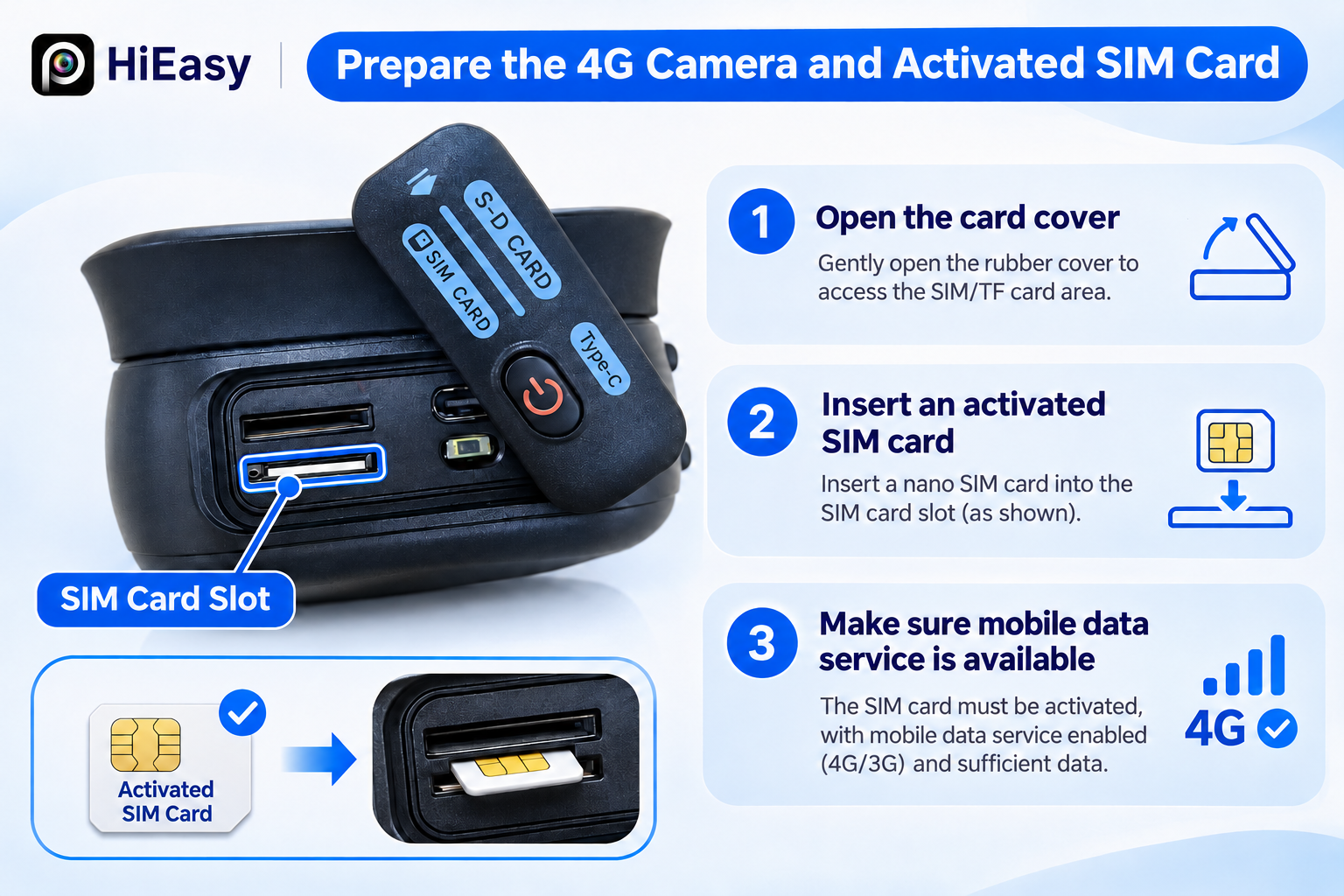
Step 2: Power On the 4G Camera
After preparing the SIM card:
- Connect the camera to its appropriate power source.
- Turn on the camera.
- Allow it to finish starting up.
- Give it time to establish a cellular network connection.
The time required for startup and network registration can vary depending on the device and local network conditions. Make sure the camera remains powered on throughout the setup process.
Step 3: Add the 4G Camera Using Its QR Code
Once the camera is ready:
- Open the HiEasy app.
- Go to My Devices.
- Tap the + icon to add a camera.
- Locate the device QR code on the MS-6606.
- Point your phone at the QR code.
- Wait for HiEasy to recognize the device.
- Follow the remaining on-screen prompts to complete the connection.
After the QR code is recognized, HiEasy guides you through the remaining steps. Wait until the camera appears in your device list. 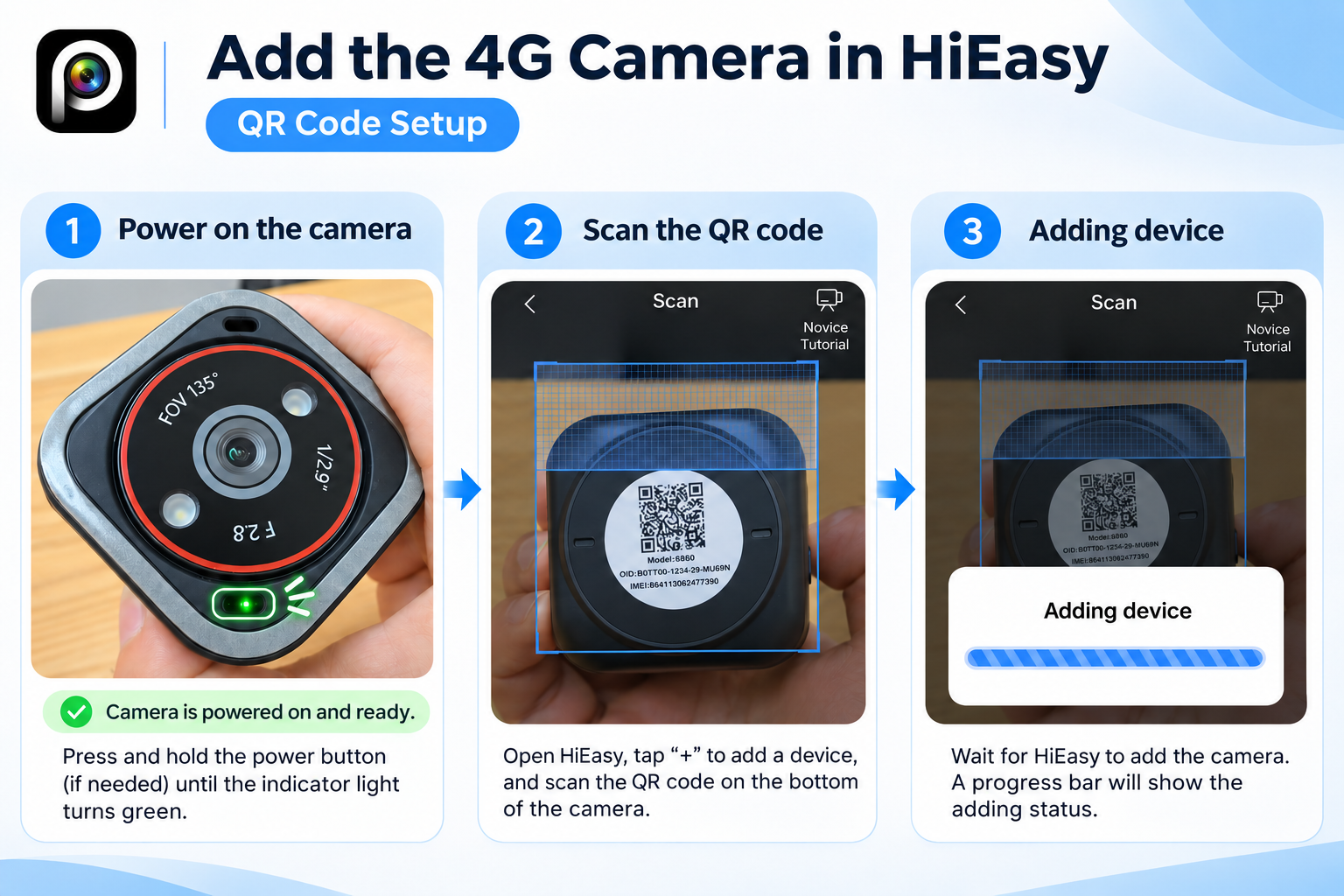
Step 4: Check the 4G Camera’s Live Video
After the camera has been added:
- Find the camera in My Devices.
- Tap it to open Live View.
- Confirm that the camera is online.
- Check that the live video feed is displayed.
In our demonstration, the MS-6606 connects successfully to HiEasy and displays live video. This verifies that the tested camera and SIM card were able to establish a working connection in the demonstration environment. Video Tutorial: How to Connect a 4G Camera to HiEasy Demonstration Model: MS-6606
What Is the Difference Between WiFi and 4G Setup?
Although both camera types can be added to HiEasy, their network requirements are different. A WiFi camera needs access to a supported wireless network and its password. A 4G camera instead uses a compatible SIM card and mobile data connection. For the MS-6606 setup shown here, no home WiFi password is required. However, the phone running HiEasy still needs an internet connection to access the camera remotely.
How to Reset a Forgotten HiEasy Password
If you forget your HiEasy account password, you can use the email-based recovery process demonstrated in our tutorial. You will need access to the email address associated with your account.
Reset Your HiEasy Password Using Email
- Open the HiEasy app.
- On the login screen, tap Forgot Password.
- Enter your registered email address.
- Tap Next.
- On the password recovery page, tap Get code.
- Check your email inbox for the verification code.
- Enter the code into HiEasy.
- Create a new password containing 8–16 characters, including letters and numbers, as shown in the tutorial.
- Enter the new password again to confirm it.
- Tap Complete password reset.
After the reset is successful, return to the login screen. 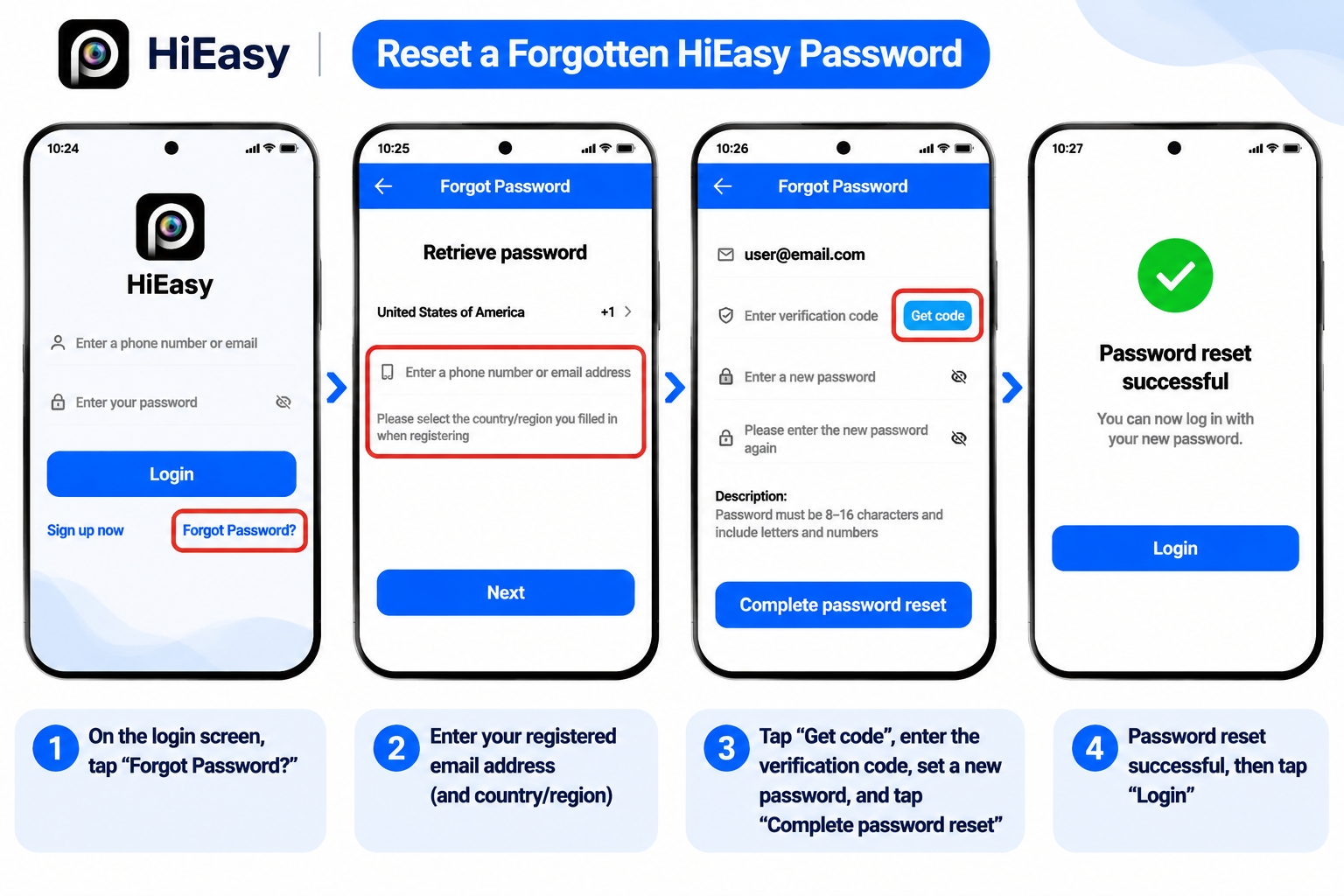
Log In With Your New Password
To regain access:
- Enter your registered email address.
- Enter your new password.
- Tap Login.
- Confirm that HiEasy opens the My Devices screen.
Once you reach the device list, your account recovery process is complete. Video Tutorial: How to Reset a Forgotten HiEasy Password Note: This video demonstrates recovering a forgotten password. It does not demonstrate changing a password from account settings while already signed in.
HiEasy Camera Setup Troubleshooting
If your camera cannot be added to HiEasy, check the basic requirements before repeating the setup process. The following recommendations are general diagnostic checks, not a guarantee that every issue can be resolved using the same procedure.
HiEasy Cannot Find Your WiFi Camera
If HiEasy does not detect your camera, start by confirming that the device is powered on and ready for setup. If you are using automatic discovery, make sure Bluetooth is enabled on your phone. You can also try scanning the device QR code instead of relying on automatic discovery. For a camera that has already been configured, check whether its model-specific instructions require a reset before reconnecting it.
HiEasy WiFi Camera Connection Failed
If the WiFi connection does not complete, check these possible causes:
- Incorrect WiFi password.
- Unsupported WiFi frequency.
- Router or wireless network connectivity problems.
- Camera power interruption during setup.
- Camera not ready for pairing.
Confirm that the selected wireless network matches your camera’s supported frequency. For the MS-6607D-WIFI demonstration, a 2.4GHz WiFi network is used successfully.
HiEasy 4G Camera Is Not Connecting
If a 4G camera cannot establish a connection, check whether:
- The SIM card is activated.
- The mobile data plan is available.
- The camera supports the relevant cellular network bands.
- Cellular coverage is available at the installation location.
- The camera is powered on and has completed startup.
- The correct device QR code is being scanned.
During our MS-6606 test, a phone that could not add the 4G camera completed setup after we turned off the phone’s WiFi. This was a troubleshooting step that worked in our test, not a requirement for all 4G cameras. We also encountered a SIM card with no remaining mobile data. The camera connected again after we replaced it with a SIM card that had available data. If the problem continues, consult the camera’s user manual or contact the original supplier for model-specific assistance.
HiEasy Email Verification Code Not Received
If you do not receive an account registration or recovery code:
- Check that your email address is correct.
- Look in your spam or junk folder.
- Allow time for the verification message to arrive.
- Request another code if the app allows it.
- Confirm that your phone has a working internet connection.
If verification remains unsuccessful, follow the app provider’s account support instructions.
Disclaimer: ICSEECAM is a security camera manufacturer and OEM supplier, not the developer of the HiEasy app. Software availability, account services, app interfaces, and camera compatibility may change. Always follow the current app instructions and documentation for your specific camera model.
HiEasy Cameras for Wholesale and OEM Projects
ICSEECAM offers HiEasy-compatible WiFi, 4G, and solar cameras for wholesale and OEM/ODM sourcing. Explore our HiEasy camera collection to compare models and request a wholesale quote.