
Free YCC365 Plus APP Download: Supports PC, Android, and iPhone
Download the secure YCC365 Plus APP here! Whether you’re a Windows PC, Mac, Android, or iPhone user, you can easily install and monitor your security cameras anytime, anywhere.
Note: We are one of the many OEM manufacturers of YCC365 plus cameras, not the official app developers.

Verified YCC365 Plus APP Download Sources
YCC365 Plus APP secure download, safe download links from the official website, Google Play Store, and App Store to ensure your device is protected.

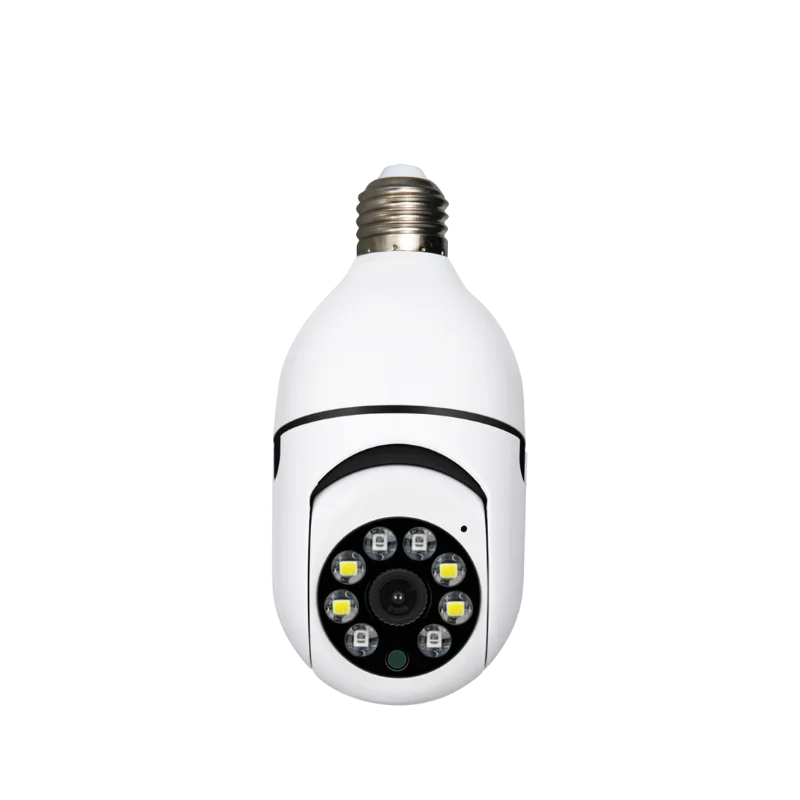
Top Selling YCC365 Plus Cameras
As a leading CCTV manufacturer in China, we provide custom YCC365 Plus camera production for global brands. Select from indoor or outdoor, WIFI or 4G, and resolutions from 2MP to 4K. Ideal for home security, business monitoring, and municipal projects. Partner with us to elevate your brand.
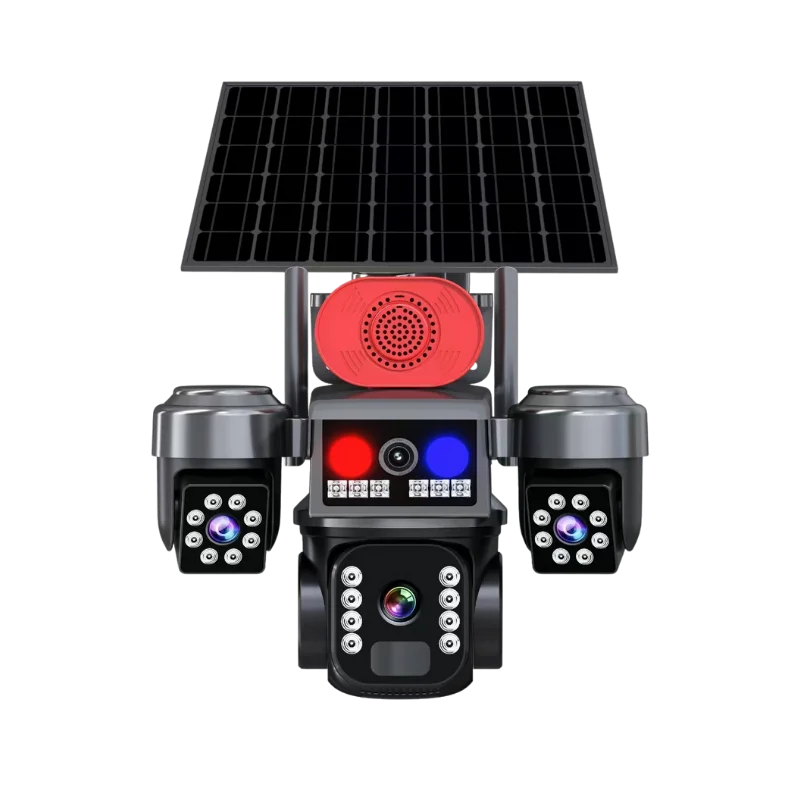
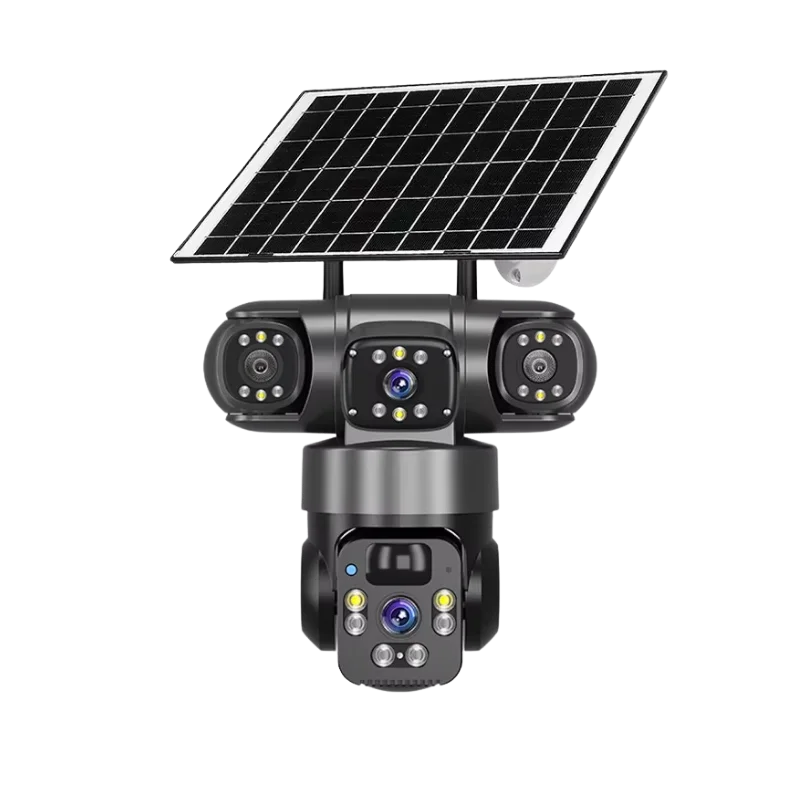
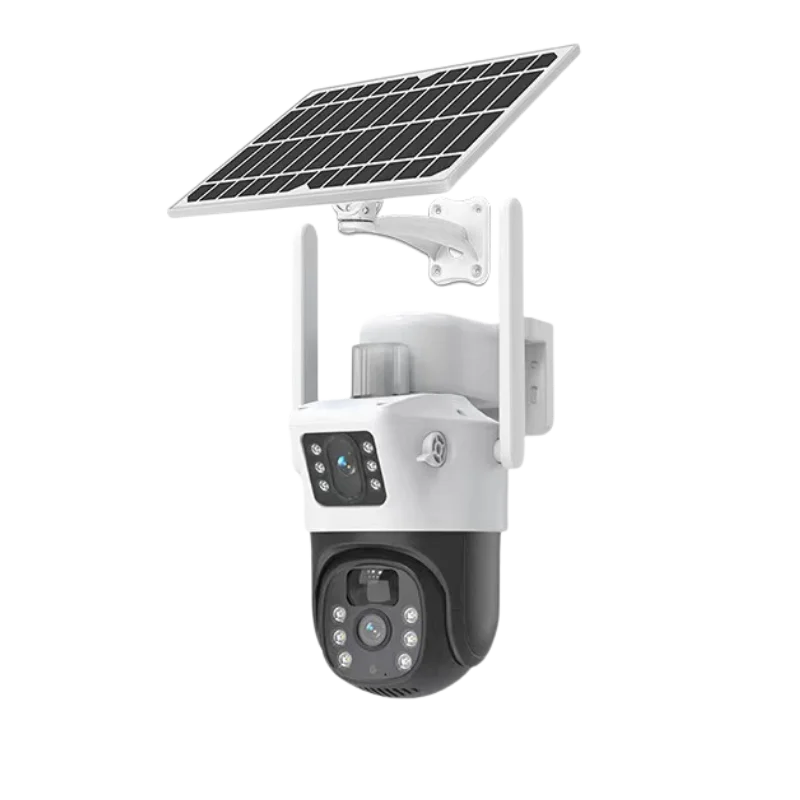
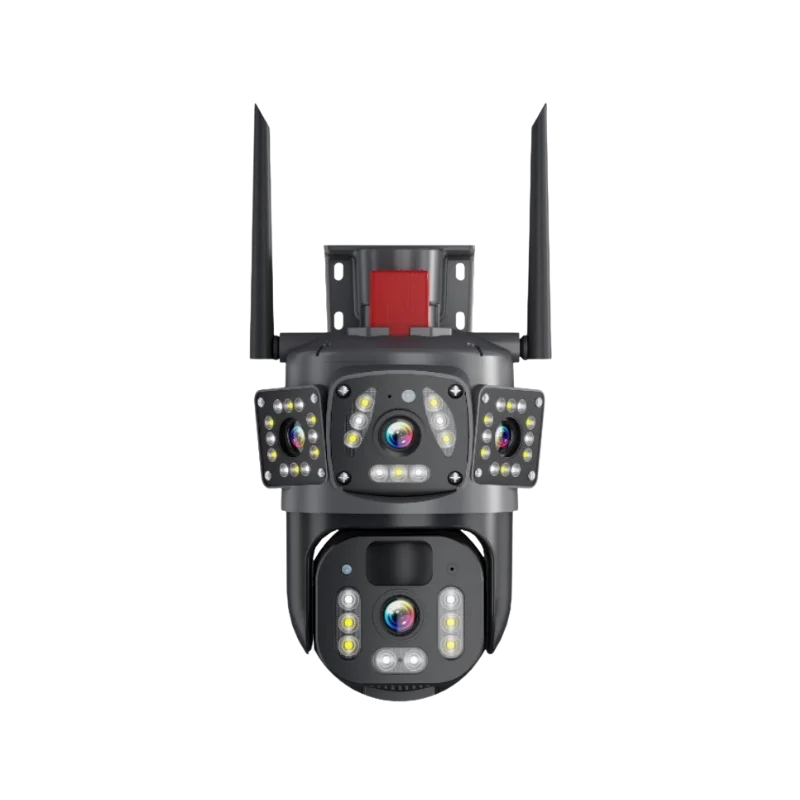
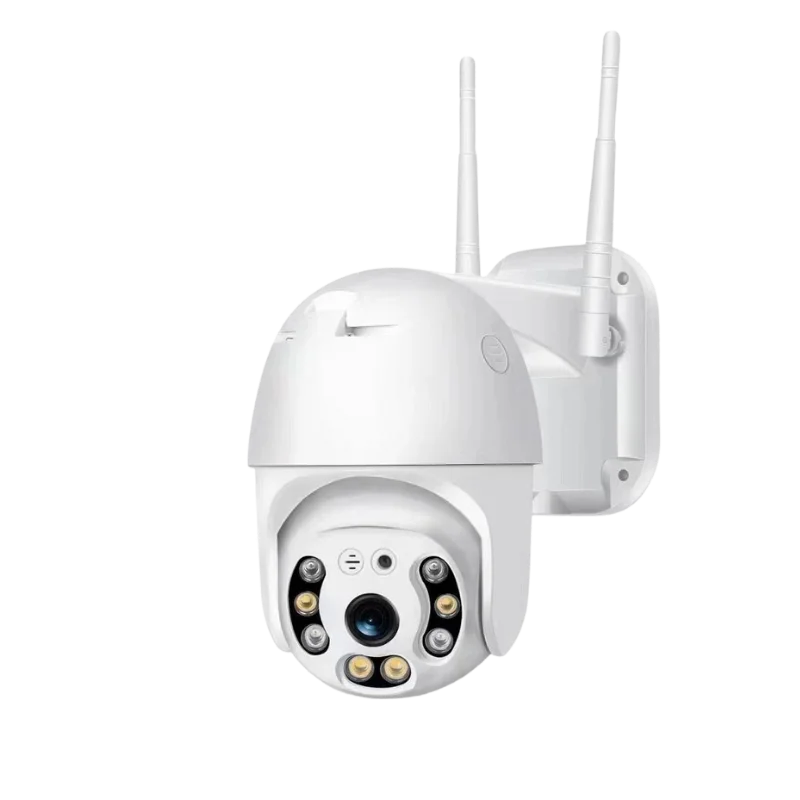
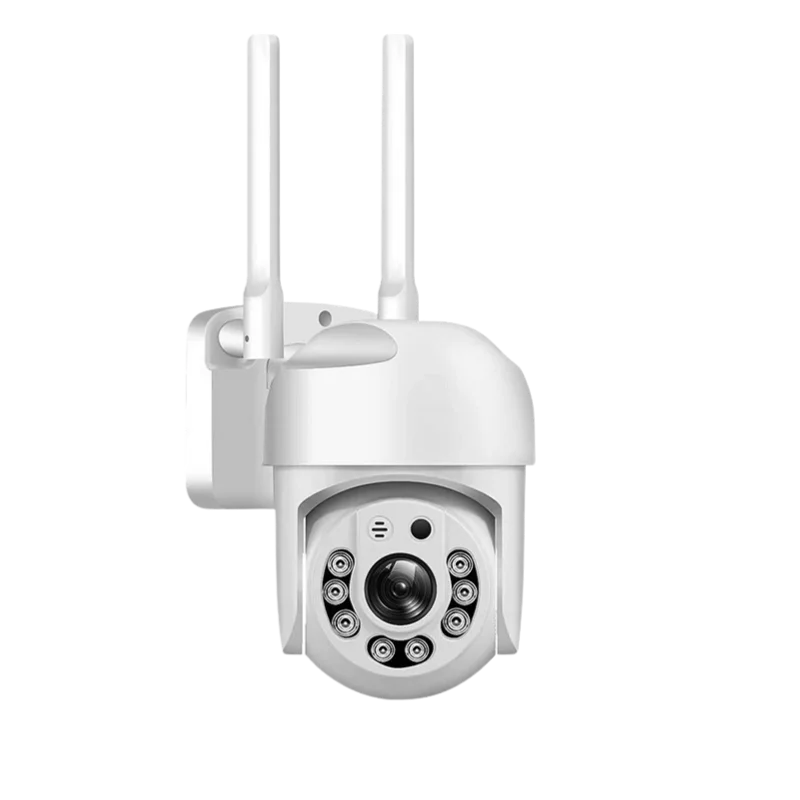
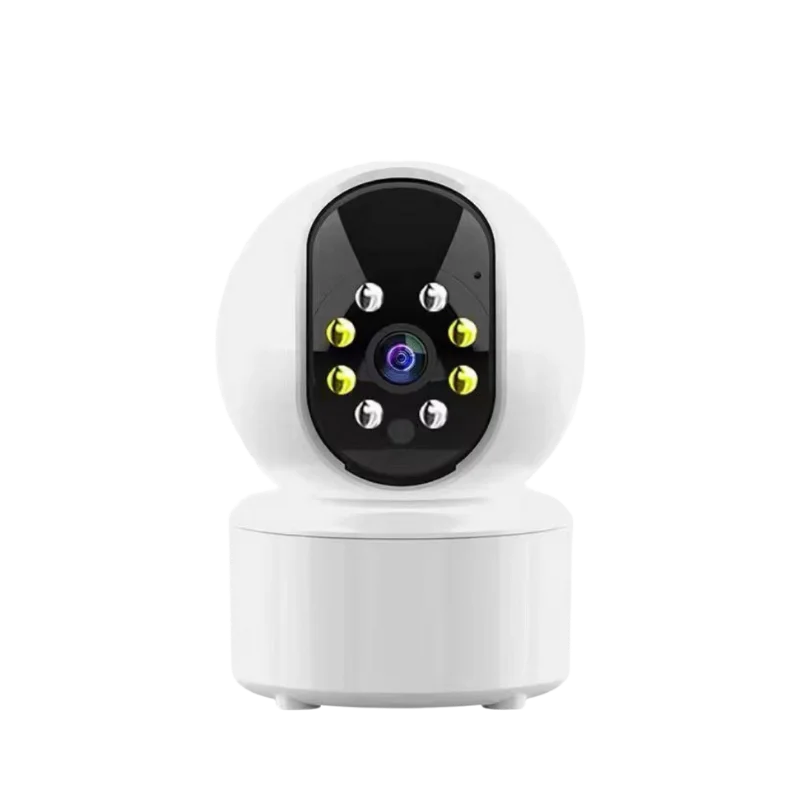
YCC365 IP CameraIndoor Model
YCC365 Plus FAQs: Setup, Troubleshooting & Features
Find quick solutions for YCC365 Plus cameras and app. Get answers on setup, Wi-Fi connection, cloud storage, troubleshooting, resetting, and more. Resolve issues instantly and maximize your security experience.
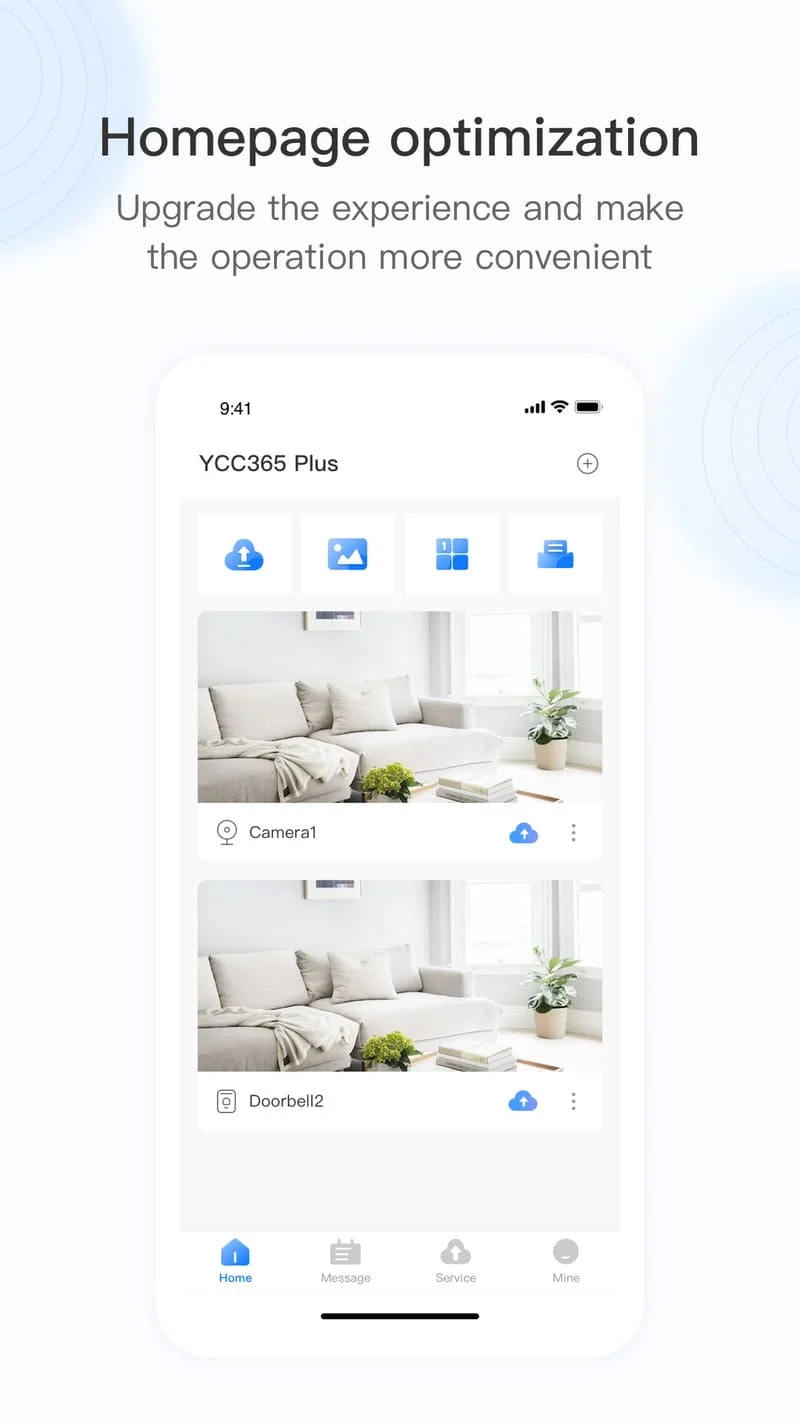
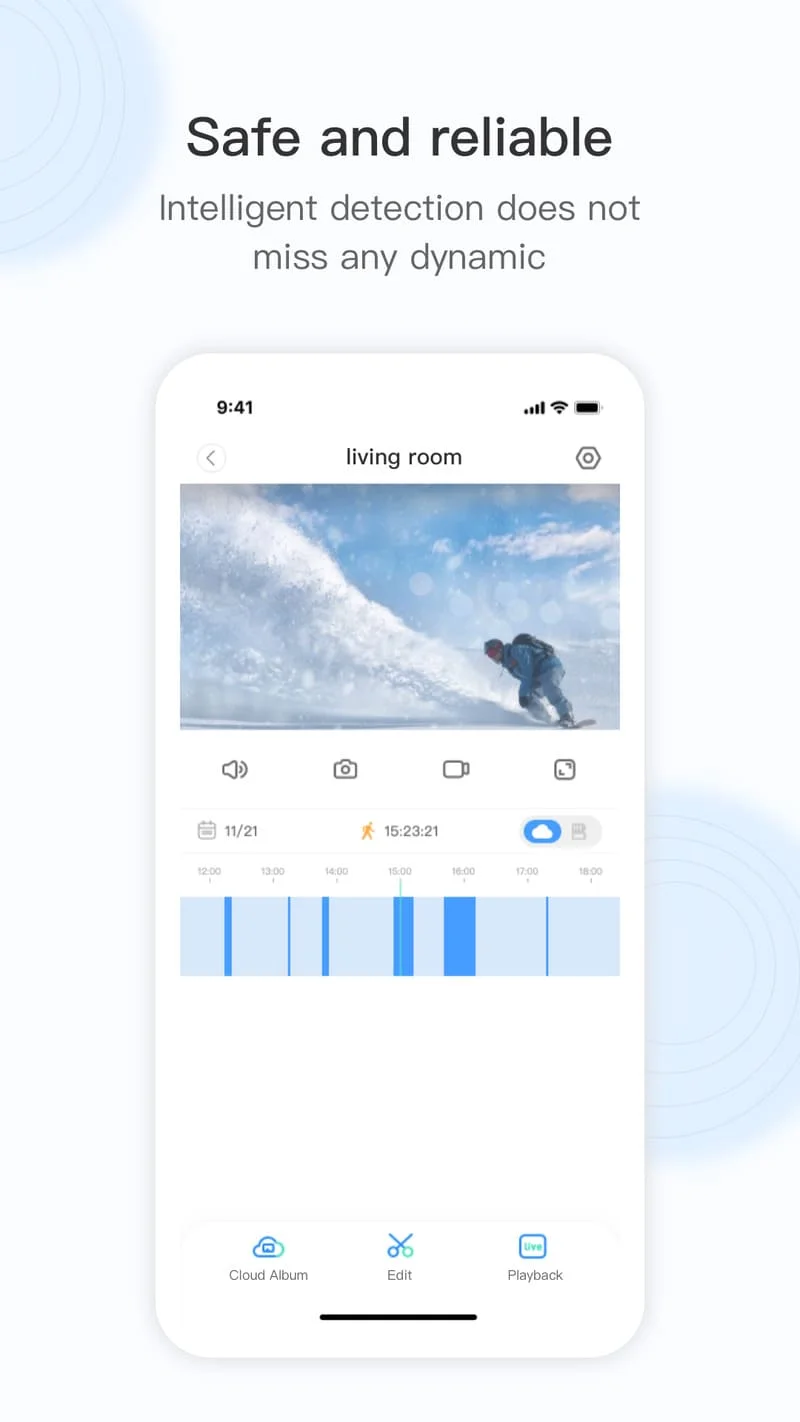
YCC365 Plus is a surveillance camera app designed to allow users to remotely monitor cameras in their homes, offices, or any other space. It provides real-time streaming, motion detection alerts, two-way audio, and supports local and cloud storage for recorded video.
Both apps are network camera viewing applications, but YCC365 Plus is an updated, smarter, and more feature-rich version. It offers improved UI, better security, and advanced cloud features compared to the older YCC365 app. Many devices and manuals now recommend or only support YCC365 Plus for newer cameras.
Download the YCC365 Plus app and create an account.
Ensure your phone and camera are both on a 2.4GHz Wi-Fi network.
In the app, tap “+” to add a device, select “Smart Camera”, and use the “Scan to add the device” option.
The app displays a QR code—hold your phone’s code about 10–20cm from the camera.
Wait for a beep/voice prompt, then confirm. After about 30–120 seconds, your camera will appear online in the app
Locate the reset button (often near the memory card slot or on the camera head). Hold it for 5–10 seconds until you hear a “Reset success” prompt. This returns the camera to factory settings, allowing for reconfiguration or fixes.
Possible solutions include:
- Make sure you’re using a 2.4GHz Wi-Fi network.
- Reset the camera and reconnect.
- Double-check Wi-Fi credentials.
- Keep the camera close to the router during setup.
- Ensure the device isn’t bound to another account and the firmware/app are up to date
Typically, the reset button is a small pinhole button located near the memory card slot, or on the head/body of the camera. Check your specific model’s manual if needed.
Purchase is made through the YCC365 Plus app. After logging in, go to your camera’s settings, find “Cloud Storage,” and follow instructions to subscribe. Payment options and plans are shown directly in the app.
- Download the official YCC365 Plus software for PC or Mac from their website.
- Install and log in with your YCC365 Plus account credentials to view and manage your cameras on your computer.
- Some setups may require an Android emulator if no native app is available.
Navigate to the playback or recordings section in the app, select the desired video, and use the delete option (trash can icon). If it’s a cloud recording, deletion is also done directly in the app’s cloud storage menu.
Open the app, access the camera’s storage or playback/videos section, and select files on the memory card to delete. Alternatively, remove the card and format it using a PC/card reader, but this erases all content.
There are two main methods:
1. If you’re not moving the camera:
Go to the app’s settings, find “Parameter setting” or “Network settings,” select “Wi-Fi Network,” and choose the new Wi-Fi from the list.
2. If you’ve moved the camera (or see a disconnect message):
Power up the camera. On the app’s main page, tap “Device disconnected,” then select “TROUBLESHOOT” to reconnect to a Wi-Fi network.
On the app’s login page, tap the “Forgot password” link. Follow the prompts to reset your password—typically via an email verification. The new password must be at least 6 characters long.
Open the app and go to your device settings. Tap the “Add family members” or “Share” option, then enter the email/account of your family member. They must also have the YCC365 Plus app and create an account to view the shared feed.
Yes, YCC365 Plus cameras support both features:
- Night Vision: Uses infrared (IR) LEDs to capture video in low light and darkness, with night vision distance typically up to 10 meters.
- Motion Detection: Built-in motion detection automatically triggers alerts. Human figure (AI) detection is available on supported models.
YCC365 Plus cameras support microSD/TF cards ranging from 8GB up to 128GB. The app will show your card’s capacity as a percentage. Higher capacities (e.g., 256GB or 512GB) are generally not officially supported but may work in some recent models; performance for larger cards may vary.
Try these steps:
- Restart both the camera and your router.
- Ensure your Wi-Fi signal is strong and stable.
- Check for firmware/app updates.
- Reset the camera by holding the reset button for at least 5 seconds; then reconfigure the device in the app.
- If the problem persists, remove the camera from the app and re-add it as a new device.
- Open the YCC365 Plus app, go to camera/device settings, then select “Device Info” or “Firmware Update.”
- If an update is available, follow the on-screen instructions to start and complete the update.
- Make sure the camera is connected to stable Wi-Fi and remains powered during the update
Within the app, go to the device’s settings and locate the “Alarm” or “Notifications” option. Toggle push notifications on or off as desired. Some notification controls may also be found in your phone’s system settings for the YCC365 Plus app.
Tip: For all camera setup and troubleshooting, ensure you’re using a 2.4G Wi-Fi network, as most models do not support 5G Wi-Fi.
If you encounter persistent issues, resetting the device and starting from scratch is often effective. For security matters, always keep your app and device firmware updated.
Partner for YCC365 Plus Camera OEM Manufacturing
Global CCTV brands & wholesalers: Partner with us — a leading security camera manufacturer in China — for custom YCC365 Plus camera production. Get factory-direct pricing, boost your brand exposure, and deliver premium surveillance solutions worldwide.