
Free & Secure iCam365 App Download
iCam365 App by Shenzhen Tange revolutionizes home security! Seamlessly connect iCam365 cameras to view real-time HD video, replay recordings, enable cloud storage, use voice talk, and detect humans with AI. Control your surveillance worldwide from one app after quick icam365 setup.

Verified iCam365 Download Sources
Get the trusted iCam365 app download for Android, iOS, Windows, and Mac. Verified downloading sources from Google Play, App Store, and official iCam365 website.
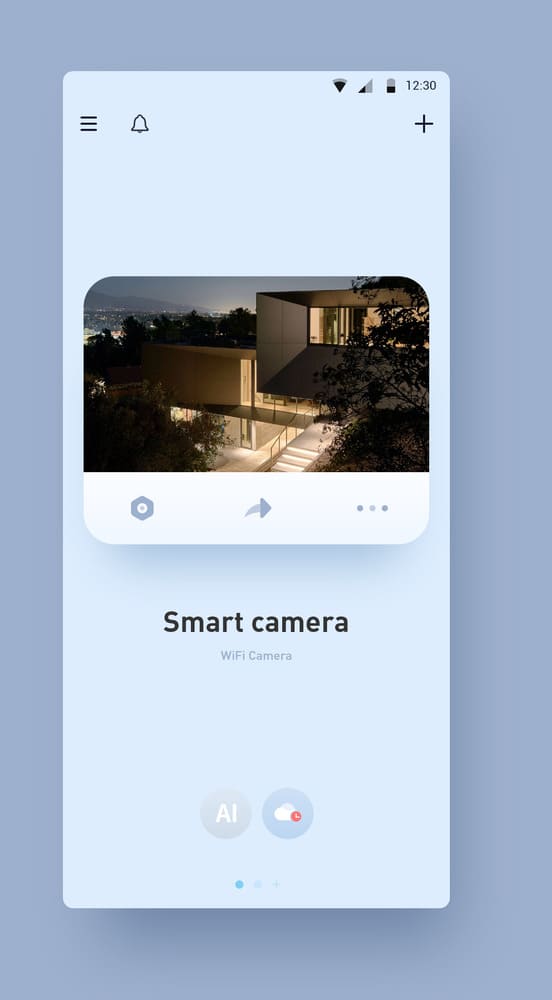
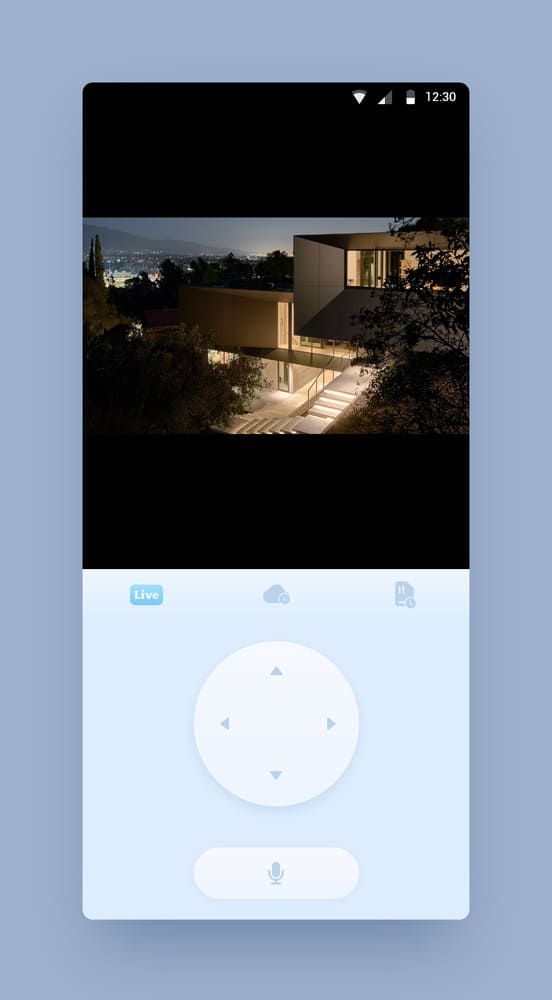
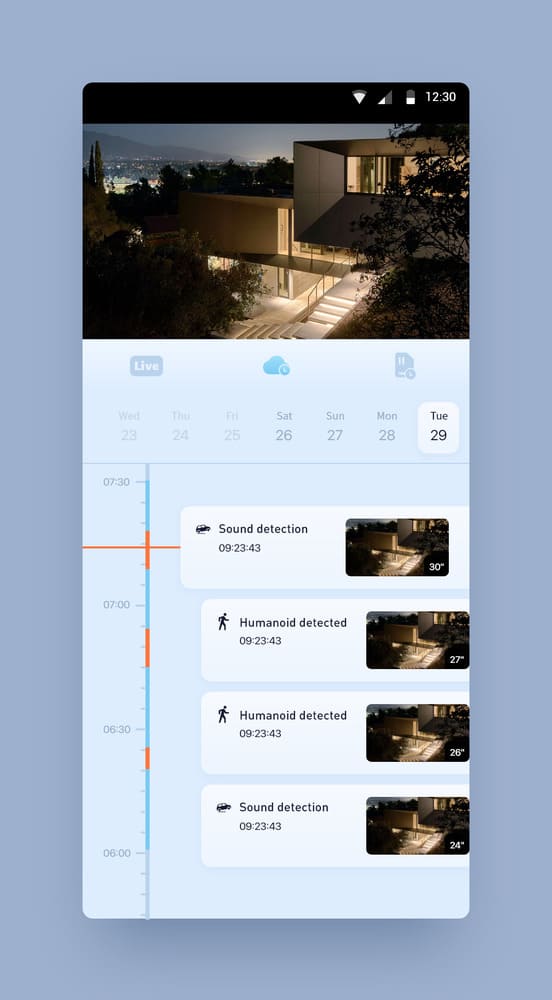
Top-Rated iCam365 Cameras for Your Home
As a 20-year security camera manufacturer, we design high-compatibility cameras that seamlessly pair with the iCam365 app. Every camera undergoes rigorous testing to ensure instant setup with iCam365 App, reliable 24/7 monitoring and crystal-clear HD video (1080p to 4K).
-

Outdoor Q20 iCam365 Dual Lens Camera
Read more -
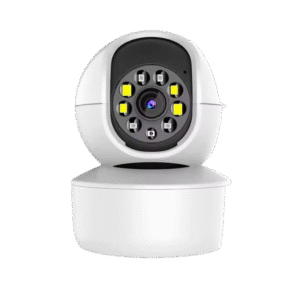
Y08 iCam365 WiFi Camera
Read more -
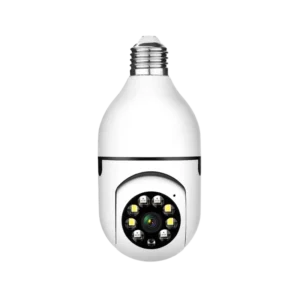
E27 iCam365 Light Bulb Camera
Read more -

iCam365 A5DCL Camera 2MP Astronaut Robot
Read more -

ICSEE A35 8MP WiFi PTZ Wireless 3 Lens Camera with Full Color Night Vision For Home Security
Read more -

ICSEE A38 Bullet PTZ Dual Lens Camera 6MP WiFi Wireless Full Color Night Vision Lightning Protection for Indoor Outdoor
Read more -

iCSee A28 Wireless WiFi Dual Lens Security Camera for Outdoor AI Human Detection Auto Tracking Subscription-Free
Read more -
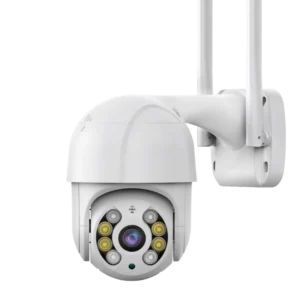
iCSee ABQ A8 Camera Automatic Tracking Outdoor White 4K Night Vision Dome PTZ IP WiFi Security Camera
Read more
FAQ of iCam365 App & iCam365 Camera
Get quick solutions for iCam365 app download, icam365 setup, icam365 login and camera issues. Troubleshooting for Android, iOS, PC, and all icam365 camera models.
The iCam365 app appears to be safe, with its privacy policy detailing security measures like ISO 27001 certification and data encryption. Research suggests it’s generally secure, but users should remain cautious and check for updates on security.
Users are advised to scan the QR code provided with the camera using their mobile phone’s scan function to download the app from https://icam365.cc/. Alternatively, search for “iCam365” in the Apple App Store or Google Play Store.
To set up your iCam365 camera:
- Open the iCam365 app and log in or register.
- Tap the “+” or “Add Device” button.
- Scan the QR code on the camera, select your 2.4GHz Wi-Fi, enter the password, and follow the prompts.
- Wait for a confirmation beep and name your camera for easy identification.
To share your iCam365 camera:
- Open the app, select the camera, and go to its settings.
- Find the “Share Camera” option, tap “Add new sharing,” and enter the email or phone number of the person you want to share with.
- Set their access level (e.g., view live feed, control PTZ) and authorize the share; they’ll receive a notification to access it via the app.
Open the iCam365 app, look for the “+” icon or “Add Camera” button, select the connection mode (e.g., scan QR code or manual entry), follow on-screen instructions, connect to Wi-Fi, and name the camera.
Connect the camera to a power supply and wait about 1 minute for it to power on. Then, open the app, log in, click “Add Device,” scan the QR code on the camera, select WiFi, enter the password, and follow prompts to name the device. This is outlined in the setup guide at https://www.camapp365.com/icam365/how-to-add-icam365-camera.
Typically, iCam365 cameras require a constant power source and are not rechargeable, meaning they need to be plugged in. However, some models, like solar-powered ones, are battery-powered and rechargeable. Most standard models being non-rechargeable, so check your specific camera’s specifications.
No, a micro SD card is not required for initial setup. It is used for local storage of recordings but is optional, as users can rely on live streaming or cloud storage.
The maximum SD card size supported by iCam365 cameras is 128GB, suitable for local storage.
The camera automatically overwrites the oldest video file when the capacity is less than or equal to 500M, requiring no manual intervention.
Power off the device when inserting the card, then restart a few times. If still not recognized, replace the card and test. If a new card is not recognized, contact your buyer for device replacement due to possible card slot or cable faults.
iCam365 cloud storage offers several plans:
- 5 GB for $4.99/month (up to 18 hours of events).
- 22 GB for $19.99/month (about 3 days).
- 60 GB for $49.99/month (about 9 days).
These cover all connected cameras with no per-camera fee.
To cancel your iCam365 subscription:For Android, go to
- Google Play Store > tap your profile icon > Payments & subscriptions > Subscriptions > find iCam365 and cancel.
- For iOS, go to App Store > tap your profile > Subscriptions > find iCam365 and cancel.
This process is free and managed through the app store.
Cameras may go offline due to weak Wi-Fi signals, distance from the router, or power issues. Solutions include restarting the camera and router, ensuring a strong Wi-Fi signal, checking the power source, and updating Wi-Fi details if changed. For detailed troubleshooting, see https://icseecam.com/icam365-ultimate-guide-2025/.
Double-check the WiFi password, ensure it is a 2.4GHz network (as iCam365 cameras only support 2.4GHz), restart the router, and place the camera close to the router for better signal. If issues persist, reset and reconfigure the camera.
To reset your iCam365 camera:
- Locate the reset button on the camera.
- Press and hold it for about 5-15 seconds until you hear a voice prompt, such as “Restore factory settings, please don’t power off.”
- The camera will reset to factory settings and need setup again.
Check the WiFi password, ensure the network connection is stable, reset the camera by pressing the reset button until a prompt tone is heard, and try adding it again. This is noted in the user manual.
Confirm that the system hasn’t turned off iCam365 message push permission, turn on “message notification” in phone settings, and check device settings. Alarm messages are stored for up to 7 days.
For “Router connection failed, please reconfigure the network,” recheck WiFi settings and reset if needed. For other prompts, follow specific instructions, such as moving the camera closer to the router for “Receiving WiFi information, connecting to server.” This is covered in the ultimate guide at https://icseecam.com/icam365-ultimate-guide-2025/.
Become a Profitable CCTV Distributor with iCam365 OEM Solutions
As a tier-1 manufacturer for 50+ security brands, we deliver: high-margin iCam365 cameras (bulb/dome/wireless/solar); white-label oem services: custom branding & packaging; bulk order priority: MOQ 500 units, 15-day lead time; multi-app compatibility: works with icam365, icsee, v380, ubox…