
CamHipro App Free Download for Android & iPhone
Download the CamHipro app safely and securely. Compatible with Android and iPhone, it lets you monitor your security cameras anytime, anywhere.
Note: We are an OEM CCTV manufacturer of CamHipro cameras, not the official app developer.

Verified CamHipro App Download Links
Get the CamHipro app from trusted sources to protect your device. Use only the official website, Google Play Store, or Apple App Store for safe installation.
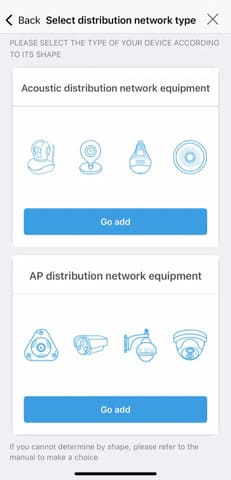
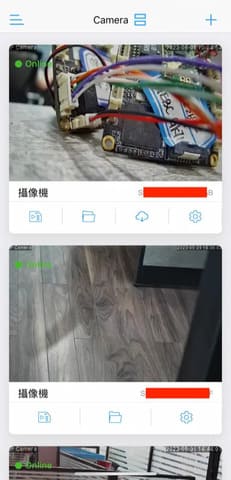
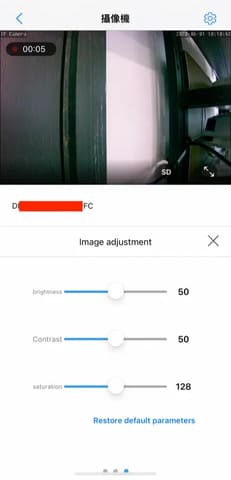
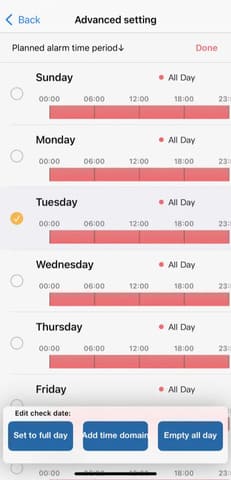
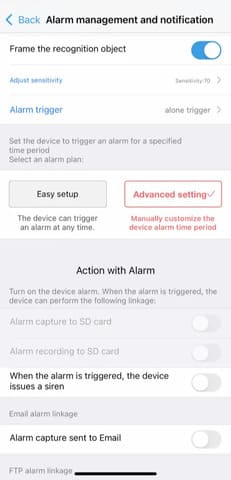
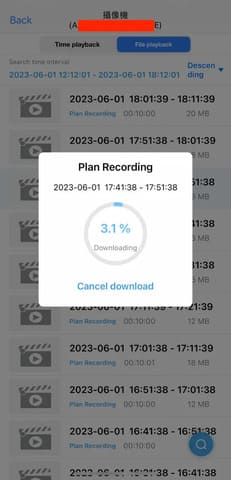
Download the official CamHipro app directly from the Google Play Store.
CamHipro App for PC
According to the CamHipro official, the APP has not yet launched a PC version client.
High-Quality CamHipro Camera Solutions
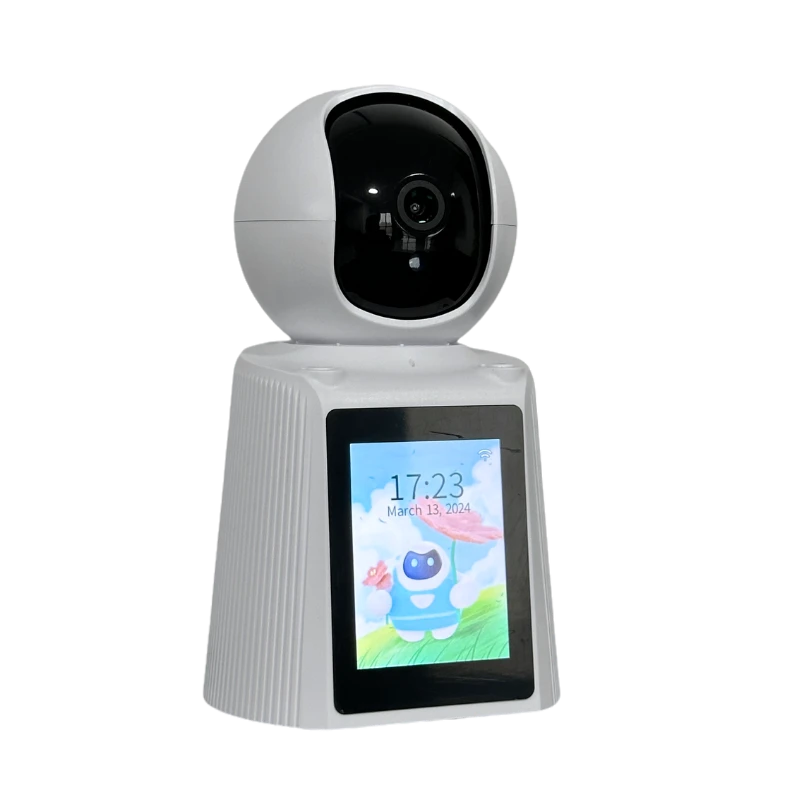
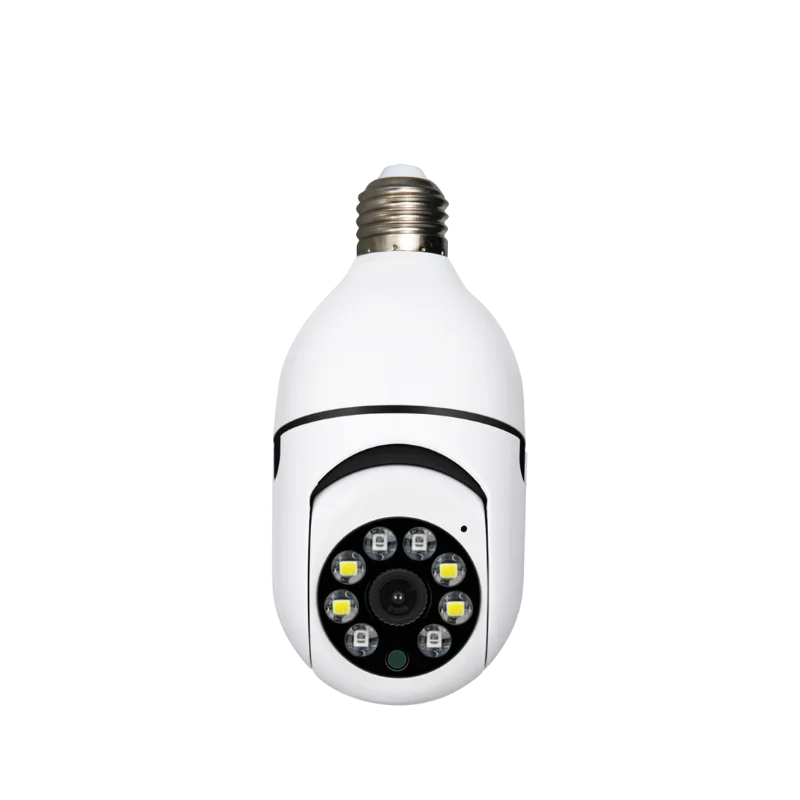
We are a leading CCTV manufacturer producing custom CamHipro cameras for global brands. Choose from indoor/outdoor, WIFI/4G, and resolutions from 2MP to 4K. Perfect for home security, business monitoring, or large-scale projects.
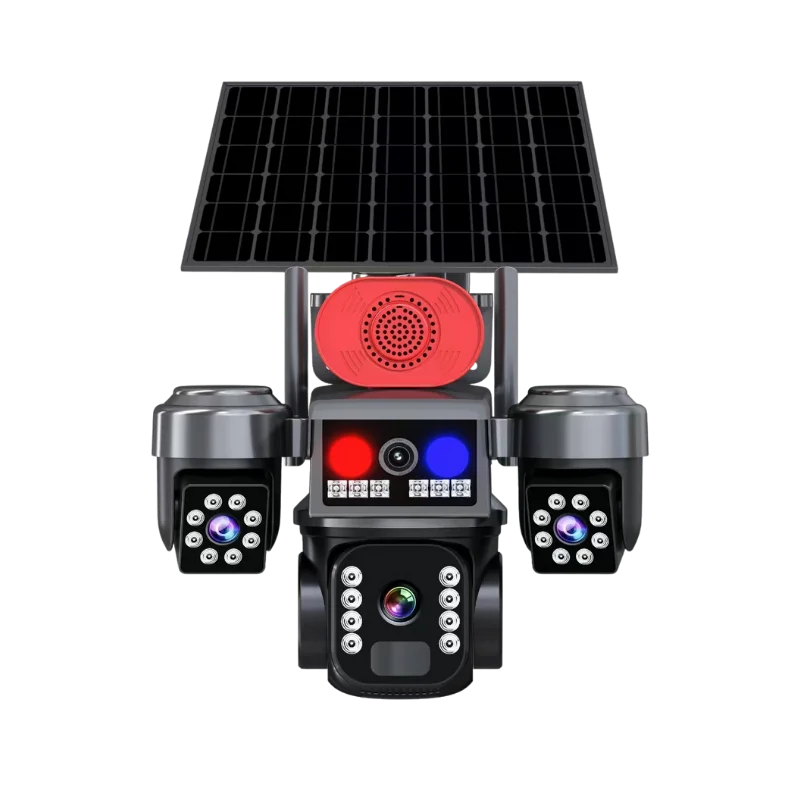
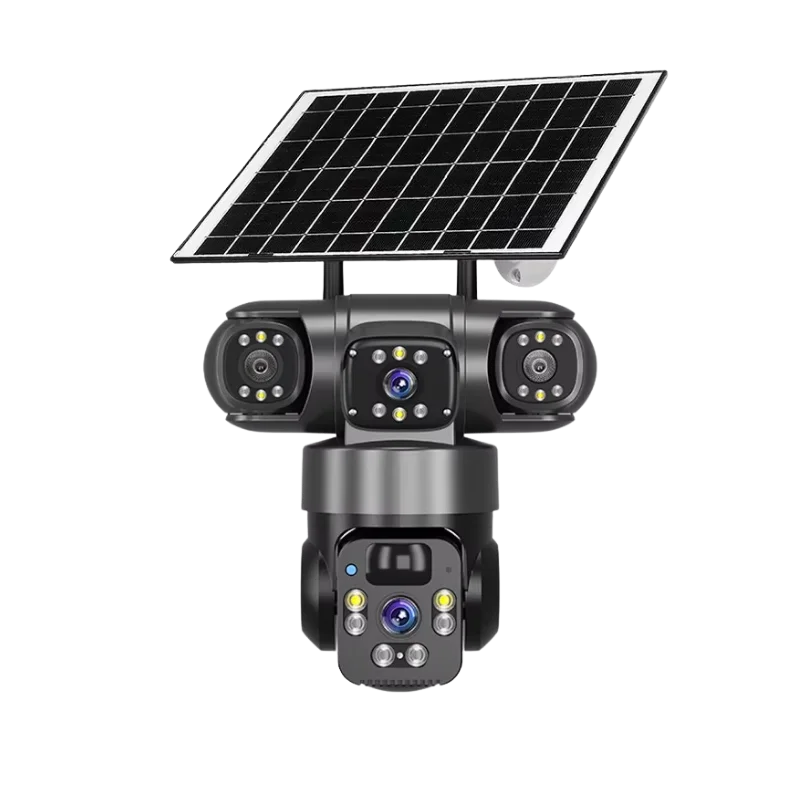
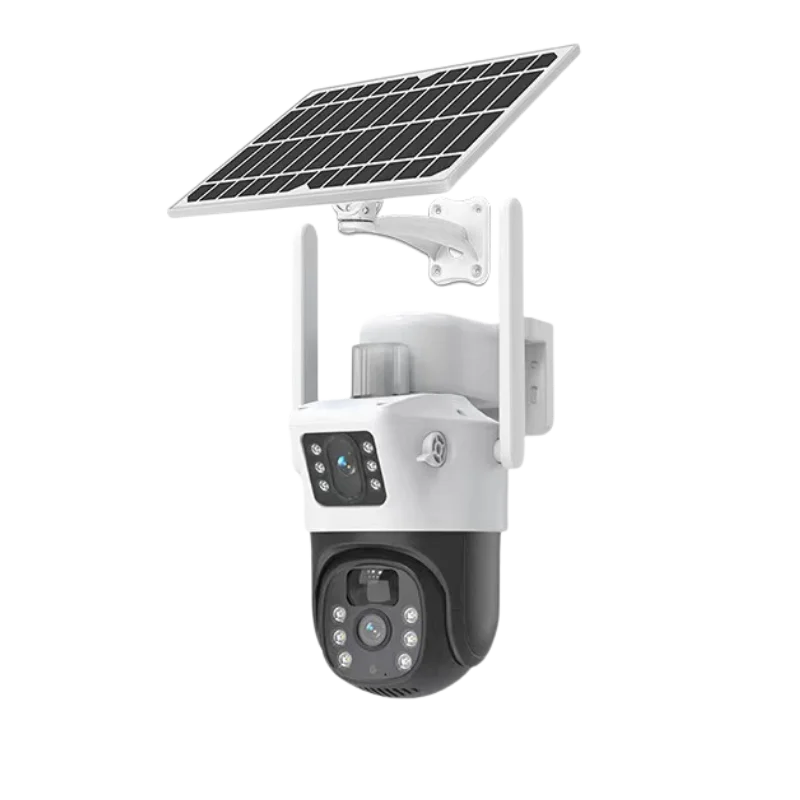
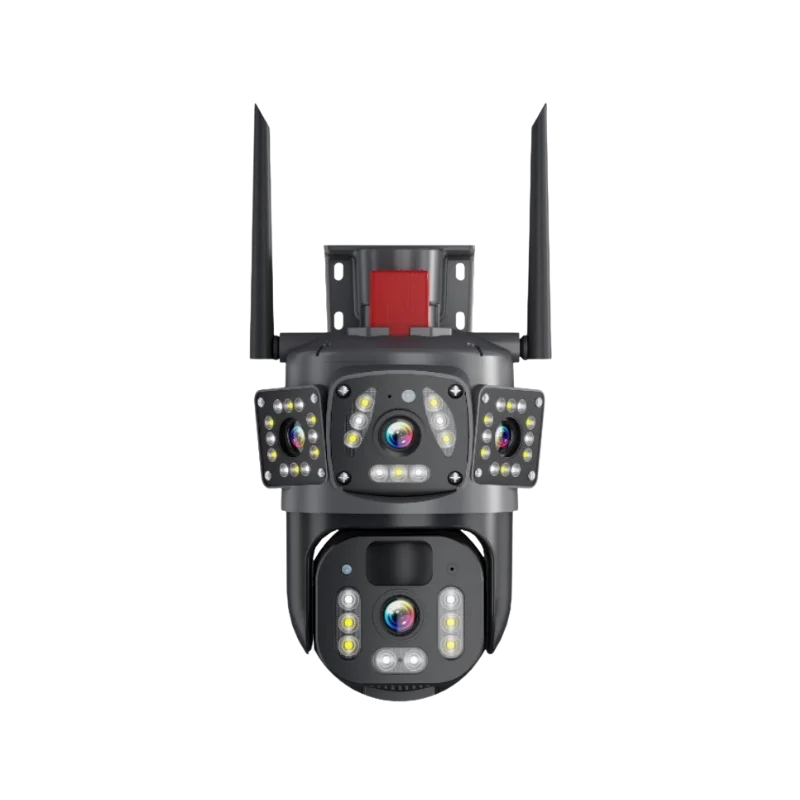
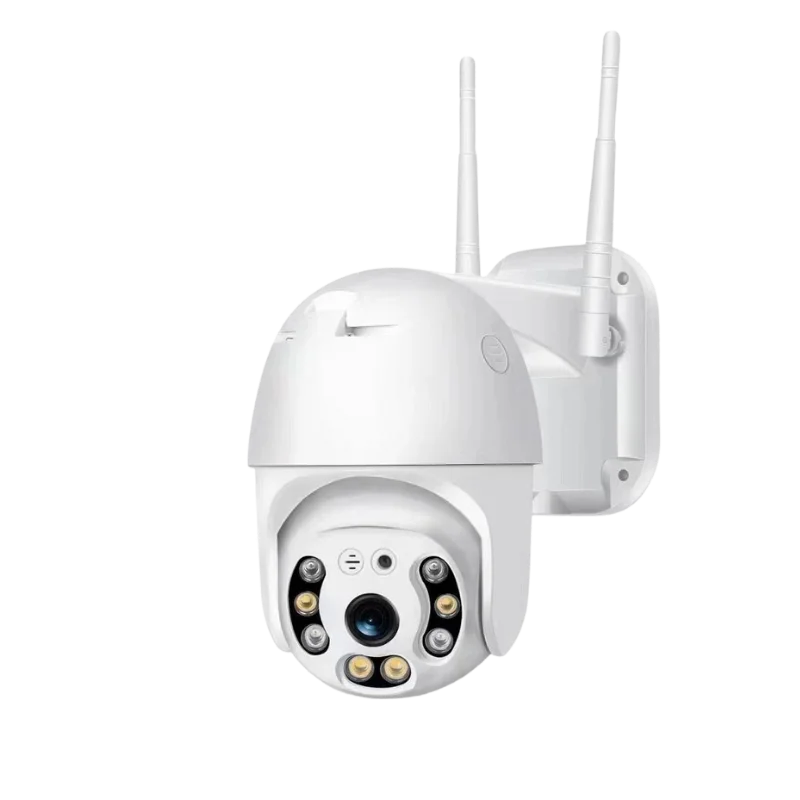
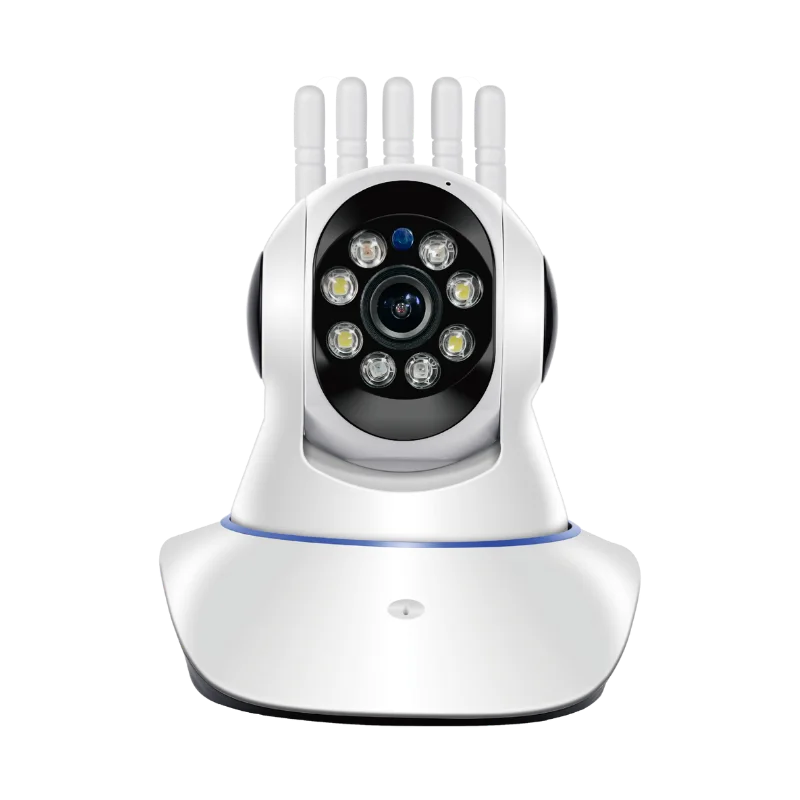
night vision security cameras
CamHipro App & Camera FAQs
Find quick solutions for YCC365 Plus cameras and app. Get answers on setup, Wi-Fi connection, cloud storage, troubleshooting, resetting, and more. Resolve issues instantly and maximize your security experience.
CamHiPro is a cross-platform software application, developed by Hichip, for managing IP and network cameras from mobile devices (iOS/Android). It enables users to monitor live video streams over both local area networks and the internet, control pan-tilt-zoom (PTZ) functions, and engage in two-way audio communication.
Functionality is essentially the same and most cameras work with either app; CamHiPro mainly offers a newer UI.
Two reliable methods:
- Wired first, then Wi-Fi: Power camera → connect Ethernet → add camera in CamHiPro (UID/LAN search) → in Wireless/Wi-Fi setting, select your 2.4 GHz SSID → enter password → disconnect Ethernet after it reports success.
- AP (hotspot) method (no cable): Power camera → on your phone, connect to the camera’s hotspot IPCAM-xxxxxx (default password 01234567) → return to CamHiPro → choose your home 2.4 GHz Wi-Fi and enter its password → wait for the voice prompt/success message.
- Default username: admin (cannot be changed on many models).
- Default camera password: admin (change it after setup).
If connecting to the camera’s temporary Wi-Fi hotspot, the default hotspot password is often 01234567. (May vary by brand/model.)
- Poor or unstable network connection (camera too far from router).
- Wi-Fi band incompatibility (CamHiPro cameras support only 2.4 GHz, not 5 GHz).
- Wrong camera password (shows “Password error”).
- Router SSID/password issues (special characters/length) or network changed.
- Power supply interruptions or camera reset required—reset and re-add the device if necessary.
- With power on, press and hold the RESET button (often on the pigtail or inside the housing) ~10–20 seconds until a voice prompt/chime, then re-add the camera and change the password.
- Some models can also be factory-reset from the app (Default setting → Reset Camera). After reset, credentials typically revert to admin/admin, and the camera hotspot IPCAM-xxxxxx reappears.
Use the app’s Share function (QR code/device share in settings) so another user can add the device without re-pairing Wi-Fi.
In the camera’s Function/Basic settings → Change password. Do this immediately after first setup.
In Alarm settings → Alarm management/Notification, enable push; adjust sensitivity; optionally enable siren/FTP/Email linkage.
Insert a compatible microSD → enable recording (continuous or alarm) → view Local/Remote playback and download clips as needed.
Yes. Most CamHi/CamHiPro cameras expose RTSP and ONVIF streams. Typical RTSP path examples: rtsp://<IP>:554/11 or /12 (varies by model); ONVIF usually on port 8080 or 8899 depending on vendor. Use your camera’s actual ports/paths.
You typically need to reset the camera to factory default (using the reset button) and then reconfigure it with the new Wi-Fi credentials via the hotspot method {{“IPCAM-…”}} or cable connection.
Partner with a Leading CamHipro Camera OEM Manufacturer
For global CCTV brands and wholesalers: Work with us for custom CamHipro camera production. Get factory-direct pricing, strengthen your brand, and deliver high-quality surveillance solutions worldwide.